
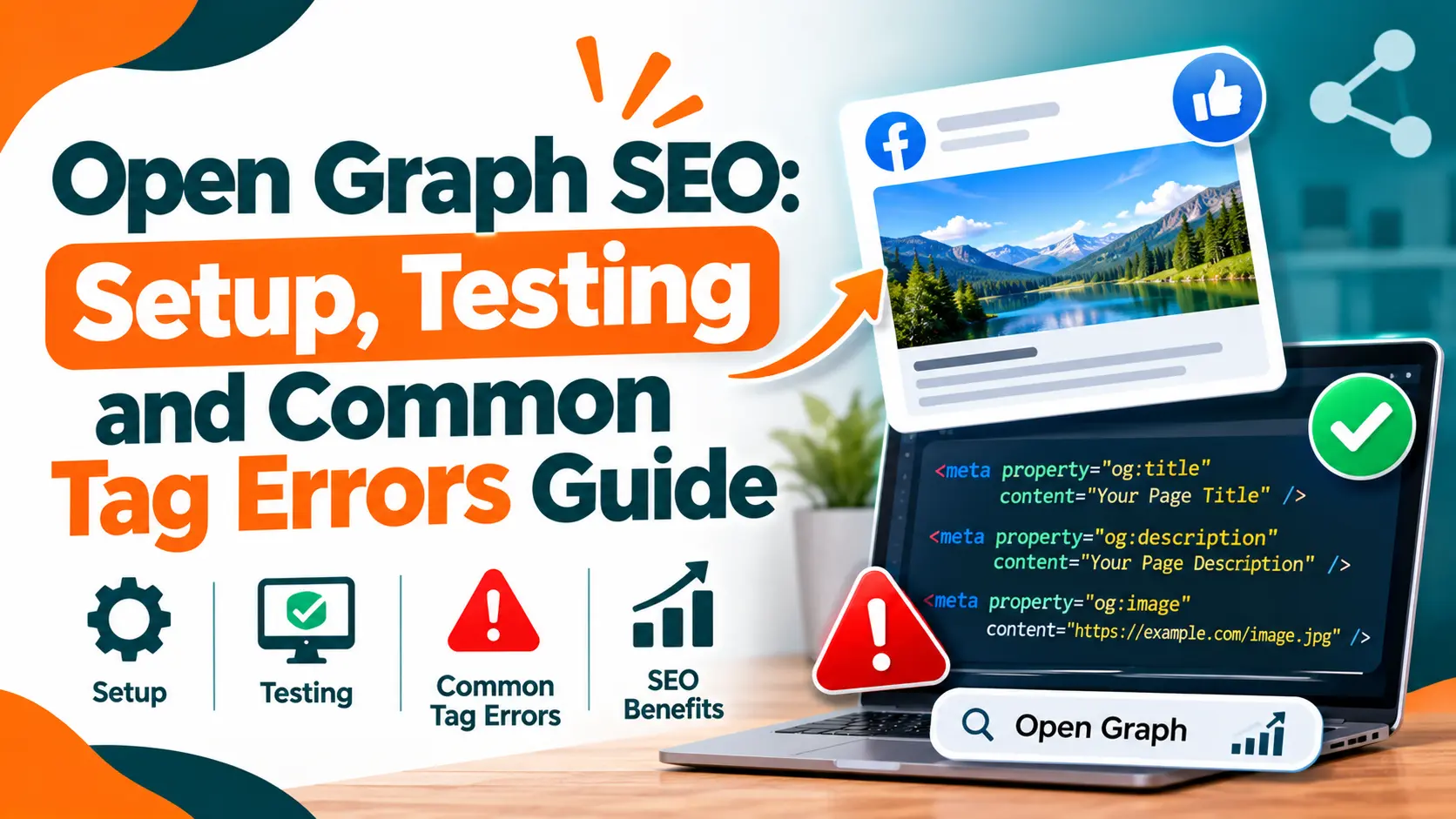
A website link should give people a clear idea of what they will find when they open it. However, when a page is shared on social media, the preview may show the wrong image, an incomplete title or a description taken from an unrelated part of the page. This can make useful content look less appealing.
Open Graph SEO helps website owners control how their pages appear when shared on platforms such as Facebook and LinkedIn. By adding the right Open Graph meta tags, you can specify the title, description, image and URL that platforms use to create link previews.
Understanding these tags is useful for bloggers, businesses and website managers who regularly share content online. This guide explains how Open Graph works, which tags to use, how to implement them and how to fix common preview problems.
What is Open Graph SEO?
Open Graph SEO is the practice of using Open Graph meta tags to manage how website pages are displayed when shared across supported social platforms and applications.
The Open Graph Protocol was introduced by Facebook to help webpages appear as rich objects in social feeds. Instead of displaying only a plain URL, platforms can use the information in a webpage’s metadata to show a title, description and image.
For example, when someone shares a blog post, the preview might contain its headline, a short summary and the featured image. Website owners can define these details through Open Graph tags rather than leaving every choice to the platform.
Open Graph tags are placed inside the HTML <head> section. They do not replace standard SEO metadata, but they serve a separate purpose: providing information for link previews.
How Do Open Graph Tags Work?
When someone shares a webpage URL, a supported platform may access the page and read its Open Graph metadata. It then uses the available information to prepare a preview.
The process is straightforward:
- You add Open Graph tags to the webpage.
- Someone shares the page URL.
- The platform reads the available metadata.
- It uses the information to create a link preview.
The preview can include the page title, description and selected image. However, different platforms may process metadata differently. Some may also store an earlier version of the preview, which is why changes do not always appear immediately.
Why Is Open Graph SEO Important?
Open Graph tags help present website content clearly when people share links. Their main value is in improving the appearance and usefulness of social previews, rather than directly changing search rankings.
Here are the main reasons to use them:
- Clearer link previews: A suitable title and description help people understand what a webpage contains before opening it.
- Better image selection: The og:image tag lets you specify the image that should represent the shared page.
- Consistent branding: Businesses can use relevant images and descriptions to maintain a recognisable presentation across shared content.
- More useful content sharing: Accurate previews help people decide whether a link is relevant to their interests.
- Greater control: You can provide page-specific information instead of relying entirely on a platform to select text and images.
These tags cannot guarantee more engagement or higher search positions. Their purpose is to make shared links more informative and consistent.
Essential Open Graph Tags and Their Uses
The Open Graph Protocol identifies four required properties: og:title, og:type, og:image and og:url. Other properties provide additional information and are useful for creating more complete previews.
| Tag | What It Does |
| og:title | Defines the title of the shared content |
| og:type | Identifies the content type, such as a website or article |
| og:image | Specifies the image used in the preview |
| og:url | Defines the canonical URL of the page |
| og:description | Provides a short summary of the content |
| og:site_name | Identifies the website or publisher |
| og:locale | Specifies the language and regional setting |
| og:image:alt | Describes the selected image |
The Four Required Properties
- og:title
This property defines the title that should appear in the shared preview. Use a clear and relevant title that accurately describes the webpage.
<meta property=”og:title” content=”A Beginner’s Guide to Technical SEO”>
- og:type
This property identifies the type of content. A homepage generally uses website, while an individual blog post can use article.
<meta property=”og:type” content=”article”>
- og:image
This property specifies the image that represents the webpage in a link preview. Choose an image related to the page rather than a random picture from the website.
<meta property=”og:image” content=”https://example.com/images/technical-seo-guide.jpg”>
Use an absolute HTTPS URL that social crawlers can access. A 1200 × 630 pixel image is a commonly used starting point, although the ideal dimensions can vary between platforms.
- og:url
This property identifies the preferred URL of the content. It should generally match the page’s canonical URL.
<meta property=”og:url” content=”https://example.com/technical-seo-guide/”>
Other Useful Open Graph Properties
Two additional properties are particularly useful for social previews.
og:description: Provides a short explanation of the page. Write a natural summary that tells people what they can expect after opening the link.
<meta property=”og:description” content=”Learn technical SEO basics, including crawling, indexing and website structure.”>
og:site_name: Specifies the name of the website or publication.
<meta property=”og:site_name” content=”Example Digital”>
You can also add image details such as og:image:width, og:image:height, og:image:type and og:image:alt. These are optional properties that describe the selected image more precisely.
How to Add Open Graph Tags to Your Website
You can add Open Graph metadata manually or use an SEO plugin, depending on your website platform.
1. Adding Tags Manually
For a custom-coded website, place the required tags inside the webpage’s <head> section.
Here is a complete example:
<head>
<title>A Beginner’s Guide to Technical SEO</title>
<meta property=”og:title” content=”A Beginner’s Guide to Technical SEO”>
<meta property=”og:type” content=”article”>
<meta property=”og:image” content=”https://example.com/images/technical-seo-guide.jpg”>
<meta property=”og:url” content=”https://example.com/technical-seo-guide/”>
<meta property=”og:description” content=”Learn technical SEO basics, including crawling, indexing and website structure.”>
<meta property=”og:site_name” content=”Example Digital”>
<meta property=”og:image:alt” content=”Illustration explaining technical SEO”>
</head>
Replace the sample information with the correct details for your page. Avoid copying the same title, image and description across unrelated URLs.
2. Adding Tags in WordPress
WordPress users can manage social metadata through SEO plugins such as Yoast SEO.
- Open the post or page you want to edit.
- Find the plugin’s social sharing settings.
- Enter the preferred social title and description.
- Select the image for the link preview.
- Save the changes and check the page source.
The exact settings may differ depending on the plugin and its version.
3. Adding Tags in Shopify and Other CMS Platforms
Some Shopify themes and other content management systems generate Open Graph metadata automatically. Others provide social sharing fields or require changes to the website template.
Before adding tags manually, inspect the page source to see whether your platform already generates them. Duplicate properties can create conflicting information and make troubleshooting harder.
Open Graph SEO Best Practices
Correct metadata helps platforms understand what your page represents. Follow these practices when setting up Open Graph tags:
- Use unique titles and descriptions: Each important page should have information that reflects its actual content.
- Choose suitable images: Use a clear image that represents the page and check how it appears at different preview sizes.
- Use accessible image URLs: Social crawlers should be able to retrieve the image without logging in or passing through restricted access.
- Set the correct canonical URL: Keep og:url consistent with the preferred page address.
- Avoid duplicate properties: Check whether your CMS, theme or SEO plugin is generating tags that you have already added manually.
- Keep metadata consistent: The social title and description should accurately represent the content visitors will find on the page.
- Check the final HTML: Make sure the tags are present in the HTML delivered to crawlers, rather than relying only on settings inside a dashboard.
These checks are especially useful when managing websites with many articles, products or landing pages.
Common Open Graph Problems and How to Fix Them
Even correctly configured tags may not always produce the expected preview. The issue can come from the metadata, image URL, website access settings or platform caching.
| Problem | Possible Cause | What to Check |
| Wrong image appears | Incorrect or multiple image tags | Check the og:image value and tag order |
| Image is missing | Image URL is inaccessible | Open the image URL and check access permissions |
| Old preview appears | Cached webpage information | Request a fresh scrape through the platform tool |
| Wrong title appears | Missing or duplicate metadata | Check og:title in the page source |
| Description is incomplete | Incorrect or missing description | Review the og:description value |
| Preview links to the wrong page | Incorrect URL value | Compare og:url with the canonical URL |
One common issue is caching. Social platforms may store the information they collected when a URL was first shared. Updating the webpage does not necessarily refresh that stored preview. Use the platform’s inspection tool where available to request updated information.
How to Test Your Open Graph Tags
After adding the metadata, inspect the page to confirm that the tags contain the correct values. You can start by opening the webpage source in your browser and searching for properties such as og:title, og:image and og:description.
You can also use social preview inspection tools:
- Facebook Sharing Debugger: Checks how Facebook reads a webpage’s Open Graph information and provides an option to request a fresh scrape.
- LinkedIn Post Inspector: Shows how LinkedIn processes a shared URL and helps identify preview issues.
Test important pages after making changes. Check that the title matches the content, the correct image appears and the preview links to the intended URL.
Open Graph Tags vs SEO Meta Tags vs Twitter Cards
These types of metadata are related, but they do not serve exactly the same purpose.
| Metadata | Main Purpose |
| SEO title (<title>) | Provides a title for browsers and a source Google may use for search result title links |
| Meta description | Provides a possible summary for search result snippets |
| Open Graph tags | Describe content for supported social sharing previews |
| Twitter Card tags | Provide metadata for link cards on X |
For example, og:title defines a social sharing title, while the HTML <title> element is an important source Google may use when generating a search result title. Google can also consider og:title among several sources, but it does not mean that Open Graph metadata directly improves rankings.
Websites can use Open Graph and Twitter Card metadata together. A common X property is:
<meta name=”twitter:card” content=”summary_large_image”>
This requests a large-image summary card. The platform’s final display depends on its current processing rules.
Wrapping Up
Open Graph SEO gives website owners more control over how their content appears when shared online. The right title, description, image and URL help create previews that accurately represent each webpage.
Start with the four required Open Graph properties, add relevant supporting metadata and check the final HTML. Test important pages with social preview tools and fix any issues with images, URLs or cached information. A consistent setup makes your website links clearer and more useful when people share them.
Frequently Asked Questions
Q 1. Does Open Graph SEO directly improve Google rankings?
No. Open Graph tags are primarily used to provide information for social sharing previews. Google may consider og:title when generating a search result title, but this does not make Open Graph tags a direct ranking factor.
Q 2. What is the recommended Open Graph image size?
A 1200 × 630 pixel image is a commonly used size for link previews. Check the current requirements of the platforms where you plan to share your content.
Q 3. Can a webpage have multiple og:image tags?
Yes. The Open Graph Protocol allows multiple image values. When there are conflicts, the first declared image is given preference by the protocol, although individual platforms may process images differently.
Q 4. Do Open Graph tags replace meta descriptions?
No. The og:description property is used for social previews, while the standard meta description may be used as a source for search result snippets. They should be written separately when different descriptions are useful.
Q 5. Why are my Open Graph tags not showing correctly?
Common causes include missing metadata, duplicate tags, inaccessible images and cached previews. Inspect the page source first, then use the relevant social platform’s debugging tool to check how it reads the URL.

Subash Kumar
Subash Kumar is a digital marketing strategist with over a decade of experience specializing in SEO, social media and data-driven content. He has helped brands achieve 150%+ growth in online visibility and increase engagement rates by up to 100% across technology, real state and ecommerce sectors. With a strong focus on analytics, Subash Kumar crafts campaigns that consistently drive results and deliver up to 5x ROI.