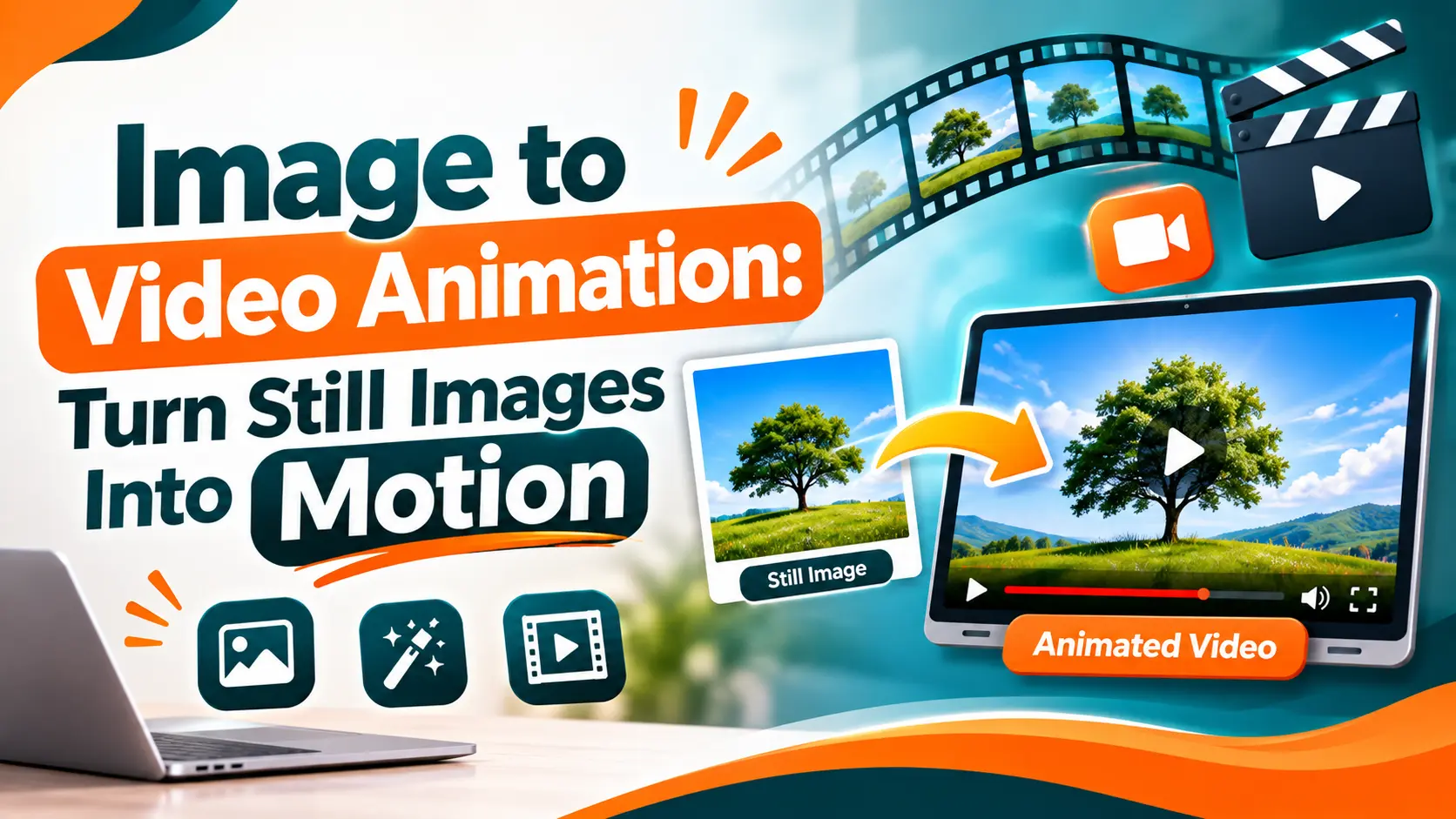
Image to video animation turns a still picture, sketch, or character design into a moving clip by describing the motion you want. Adobe Firefly’s AI animation generator animates uploaded JPG or PNG images with a text prompt, in 2D or 3D styles, at up to 4K, with no watermark on the results.
Picture a children’s book illustrator preparing a 30-second trailer for her new picture book, with help from a summer intern who has never animated anything. The illustrations already exist: a fox in a red scarf, a snowy village, a glowing lantern. The goal is simple motion, like snow drifting, the scarf fluttering, and the lantern flickering, without redrawing every frame. Image to video tools are built for exactly this. The intern can get a first draft moving in minutes, while the illustrator keeps control over style, pacing, and how far the motion strays from her original art.
Firefly makes the starting point straightforward. Adobe’s animation generator page shows that you upload a JPG or PNG image smaller than 50MB, then add a prompt of up to 1,024 characters describing the motion. Adobe’s own sample prompt reads “Animate figure walking toward the camera with scarf and hair blowing in the wind.” You can choose a 16:9 or 9:16 aspect ratio and pick from Adobe’s Firefly Video model or partner models such as Veo 3.1 Fast, Ray3.14, Runway Gen-4.5, and Kling 3.0. For more control over a single shot, Adobe’s image to video tool lets you set a start frame and an optional end frame, and camera motion reference can copy movement from a video you upload. Adobe says free accounts get free daily generations and its Firefly video models are commercially safe.
An Animated Video Maker for Beginners and Professionals
An animated video maker for beginners and professionals needs a quick first result and enough control to refine it.
For beginners, image to video removes the hardest part of animation: creating motion from scratch. Adobe says Firefly’s AI animation generator requires no complex tools or advanced skills, and you can start from a sketch, a finished character, or just a few words.
For professionals, the value is in iteration and integration. Adobe highlights switching between models to compare different types of motion, generating variations with small prompt changes, and comparing outputs side by side in Firefly Boards. Finished clips can move into Premiere, After Effects, or Photoshop for editing.
In the book trailer example, the intern generates three versions of the snowy village scene, and the illustrator picks the one that best matches her art before refining the timing.
Which Animation Generator Is User Friendly for Beginner and Advanced Animators?
An animation generator that’s user friendly for beginner and advanced animators offers simple inputs on the surface and precise controls underneath.
Simple inputs: A clear upload area and a plain-language prompt let beginners describe motion the way they’d explain it to a friend.
Format choices: Picking vertical or horizontal output up front saves resizing later. Firefly offers both.
Shot controls: Start and end frames, camera moves, and motion references give advanced users predictable results.
Targeted motion: Some tools let you choose exactly what moves. Kling’s Motion Brush lets you draw a path for specific elements, while its Static Brush keeps chosen areas still.
Easy handoff: Exporting clean files that open in editing software lets professionals finish the work in tools they already know.
Look for a tool where beginners can succeed on the first try without blocking experts from fine-tuning.
Best User-Friendly Animation Software for Beginners and Professionals: Features to Compare in 2026
The best user-friendly animation software for beginners and professionals depends on how much of the motion you want AI to handle. The table below compares four options.
| Tool | Best for | Key features |
| Adobe Firefly | Animating images and sketches with prompts | JPG or PNG uploads; 2D and 3D styles; up to 4K; multiple video models; no watermark; integrates with Premiere and After Effects |
| Adobe Express | Quick talking characters for presentations | Animate characters with recorded voices, facial expressions, and body movements |
| Immersity AI | Adding 3D depth to still photos | Converts 2D images into 3D motion using depth maps; adjustable motion and focus point |
| Adobe After Effects | Professional motion refinement | Five keyframe interpolation methods; Graph Editor with speed graph; Easy Ease |
Many teams pair a generator with an editor: create motion in Firefly, then fine-tune timing and add titles in After Effects.
Is an AI Animation Generator Easy to Use for Professional Animators?
An AI animation generator is easy to use for professional animators when it speeds up repetitive work without taking away creative decisions.
Professionals often use image to video for previsualization, mood pieces, background loops, and quick client concepts. Adobe says Firefly gives you control over visual style, motion speed, and timing, and offers flexible style controls to match existing branding or creative direction.
The biggest time savings come from iteration. Instead of keyframing three versions of a scene by hand, an animator can generate options, choose the strongest, and refine only that one. Because Adobe says Firefly animations can be brought into After Effects, professionals can add precise keyframes, layer effects, and composite generated clips with hand-animated elements.
AI won’t replace a skilled animator’s sense of timing and acting, but it can handle the first draft so more time goes to polish.
FAQ
Q. What kind of image works best for image to video animation?
Clear, well-lit images with a defined subject usually animate best. Simple backgrounds help the AI understand what should move and what should stay still.
Q. How should I write an image to a video prompt?
Describe the subject, the action, and any environmental motion. Adobe’s sample prompt combines all three: a figure walking toward the camera with a scarf and hair blowing in the wind.
Q. Can I use Firefly image to video animations commercially?
Adobe says outputs from its Firefly video models are commercially safe. Your uploaded image must not violate copyright, trademark, privacy, publicity, or other rights.

Subash Kumar
Subash Kumar is a digital marketing strategist with over a decade of experience specializing in SEO, social media and data-driven content. He has helped brands achieve 150%+ growth in online visibility and increase engagement rates by up to 100% across technology, real state and ecommerce sectors. With a strong focus on analytics, Subash Kumar crafts campaigns that consistently drive results and deliver up to 5x ROI.