
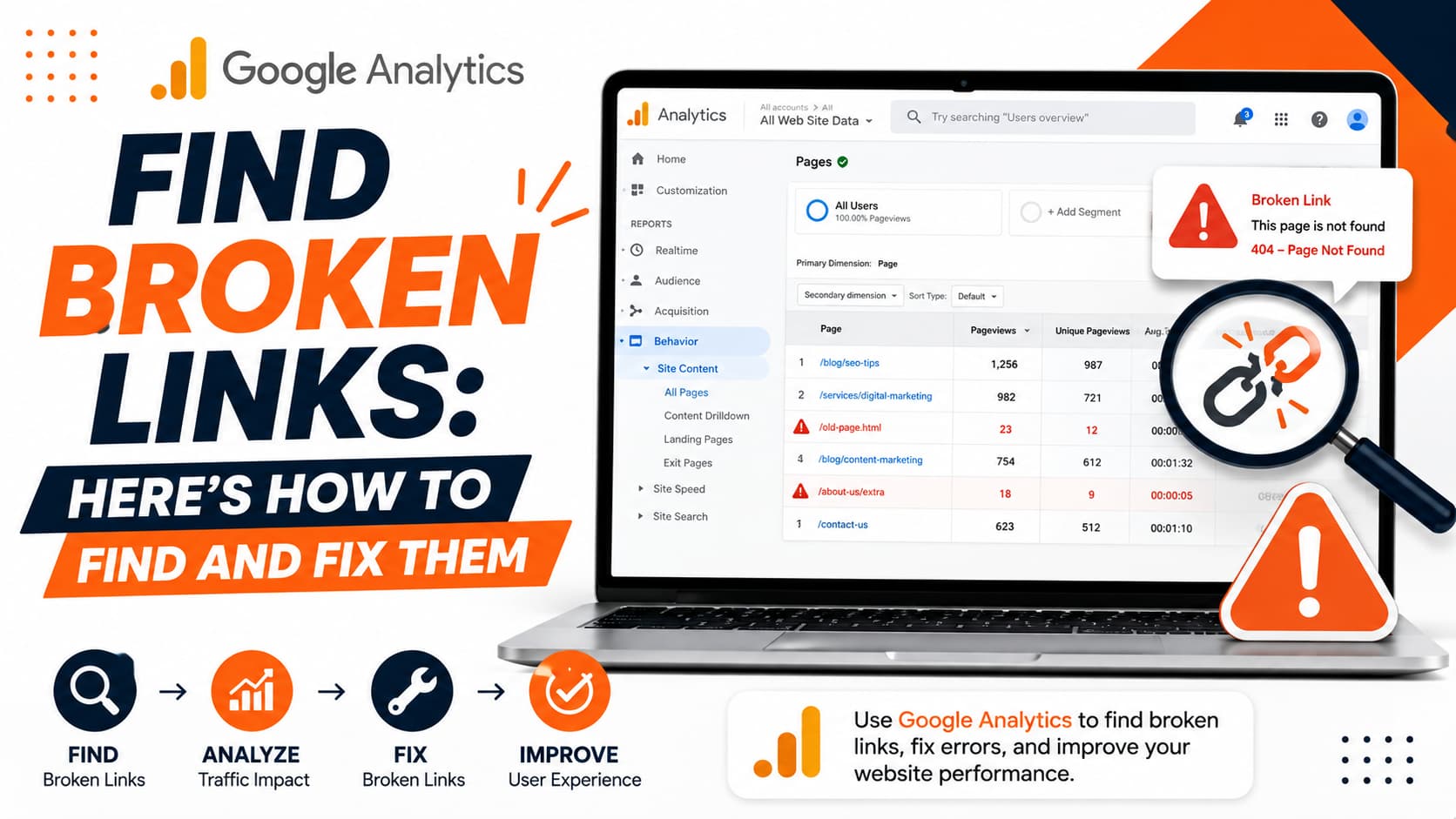
Most broken links sit unnoticed until a visitor stumbles on one. Hitting a dead end annoys your readers, hurts your credibility, and pushes people to leave your site entirely. In some instances, it is difficult to see broken links when handling a big website. This is where Google Analytics find broken links techniques can help. Your GA4 account can provide much more information than just the number of website visitors. It can additionally assist you in finding issues on your site, including missing pages, broken links, browser problems or even searches that leave your visitors without an answer. So, Read further to know how you can identify these problems and resolve them before they get worse.
How to Find Bad URLs and Broken Links Using GA4
GA4 isn’t only about tracking website traffic. You can also use it to notice small problems on your site, like missing pages, broken links, browser issues, or cases where visitors search for something but don’t find what they need.
There are two ways to use GA4 to identify and investigate 404 activity:
- Identify visits to your 404 page using the GA4 Pages and screens report, without adding custom tracking code.
- Use Google Tag Manager (GTM) to send a dedicated 404 event to GA4 for more reliable tracking.
| Method | How It Works | Developer Needed? | Best For |
| GA4 Page Title Report | Finds 404 pages by filtering for their unique page title. | No | Beginners and websites with a clear 404 page title. |
| GTM + Data Layer Event | Sends a custom event to GA4 whenever a visitor reaches a 404 page. | Usually yes | More reliable and flexible tracking. |
Method 1: Find 404 Errors Using the GA4 Pages and Screens Report
First, you should check whether your website has a proper 404 page. You can test this by entering a URL that does not exist on your website, such as:
https://www.example.com/random-page-123
Go to your 404 page and copy the tab title at the top. Searching for that exact phrase in GA4 is the easiest way to see how many people hit broken links.
Open Your GA4 Reports
Go to:
Reports → Engagement → Pages and screens
Once you reach there, ensure the report uses Page title as the main dimension. You will notice a search box right above the box. Type part of your 404 page title into it.
For example, if your title is:
Page Not Found | Your Website
you can simply search for:
Page Not Found
GA4 will show the 404 page and the associated traffic data
You’ll also see useful numbers such as:
- Views
- Users
- Sessions
- Engagement
But there’s one problem: this tells you visitors reached the 404 page, but it is not clear which URL caused the issue.
Add Page Referrer to Investigate 404 Visits
This is where Page referrer can help. Click the “+” icon beside the primary dimension to add another dimension. Search for Page referrer and select it. This lets you see where a visitor was coming from before they landed on the 404 page. It could be another page on your website, a search result, or a link from a different site. For example, you might see pages like:
- /old-blog
- /products/shoes123
- /services/seo-old
- /about-us/team-old
These are the pages or sources you can investigate to determine whether they contain links leading visitors to 404 errors. Review the referring page to find the link that may have sent the visitor to the missing URL. You may need to inspect that page to confirm the exact broken destination. You can now investigate 404 visits in GA4 without setting up a custom event, although additional tracking may be needed to identify the exact nonexistent URL.
Use GA4 Explorations to Find Referring Pages
Want to see a bit more about your 404 errors? GA4 Explorations can help with that. Open a new Exploration and add these dimensions:
- Page title
- Page path and query string
- Page referrer
Then add these metrics:
- Event count
- Active users
- Sessions
Add the dimensions to Rows and the metrics to Values. Filter the report by your 404 title to pull up the referring URLs. From there, just open those pages, locate the bad link, and fix it, restore the content, or add a quick redirect.
When This Method Doesn’t Work
There is one catch. Some websites use a generic page title for their 404 page. Others add the name of the homepage to the title, or use the same title for each page.
When this happens, filtering the Pages and screens report by page title may not reliably isolate your 404 visits. That’s where Google Tag Manager comes into play.
Use GA4 to Spot Other Website Problems
GA4 can also help you identify potential website problems beyond broken links. Go to Tech → Tech details and look at the Device model dimension. Next, you need to apply a filter for mobile users and compare engagement and conversion rates.
If people using one device are engaging less or converting less than others, it’s worth checking that device. Maybe something on the page isn’t showing properly, the page is taking too long to load, or a button just isn’t working. GA4 won’t tell you exactly what went wrong, but it can point you in the right direction.
Check What People Search for on Your Website
One of the most helpful checks for Google Analytics find broken links techniques may be your website’s internal search.
Your website’s internal search box is basically a tiny focus group running every day. Visitors show you what they want. Sometimes people search your site for something and still can’t find it, so they just give up and leave. With internal search tracking in GA4, you can see the terms people type into your site’s search box. If the same searches show up again and again, you may need to add that information to your site or make it easier for people to find.
And now you’ve got an easy content idea. If people repeatedly search for something your site doesn’t cover, create the page. If the page exists but isn’t appearing in internal search, improve its title, copy, and search relevance.
Method 2: Track 404 Errors With GA4 and Google Tag Manager
If your 404 page does not have a unique title, you can use Google Tag Manager (GTM) and a data layer event to track when a visitor reaches a page that your website identifies as a 404. This Google Analytics find broken links method will need the help of a developer since the cleanest setup will use the Data Layer.
Step 1: Send a 404 Event to the Data Layer
Firstly, you need to ask the developer to push a custom event whenever a visitor reaches a 404 page.
A simple example looks like this:
window.dataLayer = window.dataLayer || [];
window.dataLayer.push({
event: ‘page_not_found’
});
The important part is the event name. You can call it something like page_not_found and use the same name throughout your GTM setup.
Step 2: Check the Event in GTM Preview
After the developer adds the code, open Google Tag Manager and click Preview. Then enter the URL of a page that doesn’t exist on your website and connect it to Tag Assistant.
Once the preview loads, look at the event timeline on the left.
You should see your custom page_not_found event. If it appears, the Data Layer setup is working. If you don’t see it, the code or implementation needs to be checked before moving ahead.
Step 3: Create a Custom Event Trigger
Now tell Google Tag Manager what should happen when that event appears.
In GTM, go to:
Triggers → New → Custom Event
For the event name, enter the same name you used in the Data Layer, for example:
page_not_found
Save the trigger.
This trigger will fire when a person reaches a 404 page, and the custom event is directly pushed into the Data Layer.
Step 4: Send the Event to GA4
Now, build a GA4 Event tag in Google Tag Manager and attach your new custom event trigger.
You can name the event as: page_not_found
Then you need to attach the trigger you just created. Before publishing it, test it in the GTM preview to ensure that the event fires properly. If everything is working fine, publish the container.
After GA4 starts collecting the event, you will find that it has become much simpler and cleaner to find 404 activity and analyze it alongside the other website data.
Methods of Fixing a Broken Link
It is not always about finding a broken link. Once you get the right URLs causing the problems, the next step is to fix them before visitors face the same thing again. How to fix a broken link really depends on where it is and why it’s broken. Let’s have a look at some of the ways to fix broken links:
1. Set Up 301 Redirects for Moved Pages
If a page has moved to a new URL, set up a 301 redirect from the old URL to the new one. Once it’s done, open the old URL and check that it takes you to the correct page.
2. Fix Broken Internal Links
Sometimes the page is loaded, but the link that points to it is outdated. This is typically after you modify your URL or update your site. Identify pages with broken links and fix them by replacing previous links with valid ones. Link all updates, verifying key pages, such as contact forms, landing pages, product pages, and service pages.
3. Fix Broken External Links
Links can become broken if another site removes or alters its content. Try to find the updated version of the resource first and change the link. If the content has gone, replace the link with another reliable source covering the same topic.
4. Check Old Campaign and Social Links
Older blog posts, PDFs, paid ads, social profiles, and e-mail campaigns can contain broken links. Review these sources after fixing website links.
5. Test Everything After Fixing
Don’t assume that every link that has been changed due to a change in your CMS will work. Test redirects, links, and destination pages. Check for redirect loops, destination errors, recently recorded 404s, tracking problems, and mobile problems.
Conclusion
Google Analytics find broken links can help you identify technical issues that affect the user experience. Any dead URL can also be a small crack in the user experience, and enough of them make a website look neglected. GA4 will give you a practical way to find where these issues are appearing, whether you are looking for 404 pages via page titles or establishing dedicated events with Google Tag Manager. But finding the problem is only step one. Redirect old pages, repair internal links, replace dead external resources, and test everything afterwards. So, you should keep monitoring the links regularly since websites change and the current URL can stop working.
FAQs
1. Can GA4 automatically find broken links?
Not exactly. GA4 can help you identify 404 traffic by filtering your 404 page title or tracking a custom 404 event through GTM.
2. Does GA4 show the exact bad URL a user tried to visit?
Yes, if the original URL is retained in the Page path. The Page referrer shows where the visitor came from.
3. How does GA4 help with broken inbound links from other sites?
Checking the Page referrer dimension shows you which third-party domain is sending traffic to a dead page. You can then set up a 301 redirect to capture that incoming traffic.
4. How often should I check for broken links?
Audit your site monthly, as well as immediately after site redesigns, CMS updates, or major URL restructuring.

Subash Kumar
Subash Kumar is a digital marketing strategist with over a decade of experience specializing in SEO, social media and data-driven content. He has helped brands achieve 150%+ growth in online visibility and increase engagement rates by up to 100% across technology, real state and ecommerce sectors. With a strong focus on analytics, Subash Kumar crafts campaigns that consistently drive results and deliver up to 5x ROI.