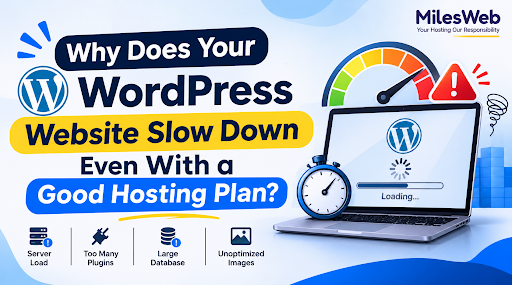
You chose a reliable hosting plan, yet your pages still load slowly. This issue is common, even among website owners who select the best WordPress hosting for beginners. A hosting plan gives your website server resources. These resources affect only one part of the page load. The remaining time depends on the steps before and after the server and on how WordPress builds each page. Therefore, a fast hosting plan can’t guarantee a fast website.
This article follows the page load in order, from the first request to the displayed page. It explains what slows each stage and how to reduce each delay.
How Hosting Affects Page Load Time?
Each time a visitor opens a page, the browser sends a request. In a typical uncached request, where WordPress builds the page at that moment, the browser first contacts the server. WordPress then generates the page. Finally, the browser downloads the required files and displays the result.
Your hosting plan provides server resources and may include features such as caching. However, it cannot optimize the plugins, the images you add, or the third-party scripts (code loaded from other companies’ services) that your pages use. The best WordPress hosting for agencies supplies more server resources, yet each client website still needs its own optimization.
Delays Before the Server Responds
Following the request in order, the first delay occurs before WordPress starts. Time to First Byte (TTFB) measures the time from the moment a visitor requests a page until the first byte (the first piece of data) of the server’s response arrives. It includes redirects (automatic forwarding from one web address to another), DNS lookup, connection setup, and server processing. Google’s guidance rates 0.8 seconds or less as good and anything above 1.8 seconds as poor.
DNS and HTTPS Connection Delays
First, the browser looks up your domain name through DNS (Domain Name System, the service that turns a domain name into a server address). A slow lookup delays the first connection, although cached results shorten repeat visits. Then, the browser sets up a secure connection (HTTPS) using TLS (Transport Layer Security, the technology that encrypts the connection). Unnecessary redirects add additional steps. Choose a reliable DNS provider and avoid extra redirects.
CDN and Server Response Time
A CDN (Content Delivery Network) stores cached copies of your files on servers in many locations and serves each visitor from the nearest one. Even a well-optimized server can show a high TTFB for visitors who live far from it, and a CDN shortens that distance.
That said, uncached or dynamic requests can still hit your origin server (where your website lives), so a CDN won’t eliminate all delays.
Delays During WordPress Processing
When the request reaches your server, WordPress starts the page creation process.
Heavy Themes and Plugins
Some plugins load JS/CSS on every page (even pages that don’t need them), for starters. A large theme can also add unnecessary code. Remove unused plugins and choose a theme with minimal code.
Database Overload
The database is a second source of delay. Old revisions (saved earlier versions of posts) and expired transients (temporary stored data) accumulate over time. Autoloaded options matter more for speed, because WordPress loads them during requests. Please ensure to back up the database before removing any unnecessary records.
Missing Page Cache
Without page caching, WordPress may process the same request repeatedly. Page caching saves a ready-made HTML copy of a page and serves it to subsequent visitors. This reduces PHP processing and database queries. Enable it through a caching plugin or your host.
Outdated PHP Versions
Finally, an outdated PHP version can slow page generation, because supported newer versions generally run faster. Test compatibility on a staging website (a private test copy of your website), then upgrade.
Delays During Browser Rendering
After the server sends the page, the browser still has to load the page’s files and display them.
Large Images and Files
Images and fonts add page weight, and so does JavaScript. Images often add the most. Compress images before you upload them and use formats such as WebP or AVIF (modern image file formats). Enable lazy loading for images that appear below the visible part of the page, but skip it for the main hero image, because guests see it first.
Render-Blocking CSS and JavaScript
Some files stop the browser from displaying a page until it has processed them. A large CSS file can keep the browser from displaying content, so reduce unused CSS and minify your files. Similarly, synchronous JavaScript interrupts how the browser reads the HTML, so defer non-critical JavaScript.
Third-Party Scripts
Third-party scripts come from outside services, including analytics tools and chat widgets as well as advertising networks. They add requests and JavaScript processing. Keep only essential services and defer the rest.
When Is Your Hosting Plan Too Limited?
A high TTFB isn’t only caused by your hosting plan, so check DNS, redirects, CDN settings, and your WordPress setup first. If your website is still slow, the hosting plan itself may be the limit. Start with PHP workers (the processes that handle requests). Your hosting plan permits only a limited number of these workers, meaning each can manage only a certain number of requests simultaneously. When all workers are busy, new requests have to wait, and your visitors wait with them.
Next, consider CPU and memory. When many visitors open your website at the same time, limits on these resources slow down PHP and database operations. A shared server adds another factor, because other websites on it can also slow your website. If your hosting plan reaches these limits, upgrade to a higher tier. You can also move to a VPS or a cloud plan.
Conclusion
A good hosting plan provides the server resources your website needs, but it can’t control every stage of the page load. Delays can occur before the server responds while WordPress builds the page and after the browser receives it.
Therefore, upgrading your hosting plan shouldn’t be your first troubleshooting step. Start by measuring TTFB with Google PageSpeed Insights or GTmetrix to see where the delay occurs. Then check the files WordPress loads. If your site is still slow after that, check out how many PHP workers your hosting plan comes with and what its CPU and memory limits are. This method will lead you to the real reason for slow loading and not pay for resources you may not need.

Subash Kumar
Subash Kumar is a digital marketing strategist with over a decade of experience specializing in SEO, social media and data-driven content. He has helped brands achieve 150%+ growth in online visibility and increase engagement rates by up to 100% across technology, real state and ecommerce sectors. With a strong focus on analytics, Subash Kumar crafts campaigns that consistently drive results and deliver up to 5x ROI.