It’s important to know which keywords drive traffic to your site for better SEO and informed content planning. Keywords show how users find you, what they search for, and how your site ranks in results. The problem is that Google Analytics often hides this data, showing “(not provided)” instead, which leaves most site owners unsure of what works for them. However, if you are still wondering how to see keywords in google analytics, it is possible to uncover these insights by integrating Google Analytics with Search Console and enabling proper reports.
Why is Keyword Visibility Important?
When you run a website, one of the first questions that strikes your mind is: What search terms direct people to my website? To be able to look at the keywords that led visitors to one’s pages, you can:
- Double down on working content
- Spot gaps and opportunities in the strategy
- Track SEO results over time
What is the challenge then? Keyword visibility inside Google Analytics isn’t what it used to be. With the privacy changes, a lot of this data is now behind the “(not provided)”. Hence, going through Analytics alone might feel like struggling.
This doesn’t mean there isn’t any way to get those insights. However, some methods are aimed at linking Google Analytics with Google Search Console at first, while others focus on creating custom reports or looking at internal site search data. This guide will take you through how to see keywords in google analytics stepwise.
Step 1: Verify your Site on Google Search Console
The foundational part for how to see keywords in google analytics is the Search Console. Without this, no Analytics will surface keyword data.
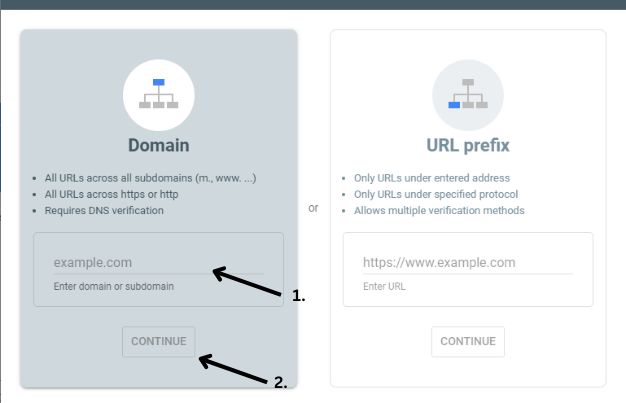
- Head to search.google.com/search-console.
- Add your property (your website URL).
- Verify ownership through any one of the methods offered: DNS record, HTML file upload, tag, or Google Tag Manager.
Once you set up, Search Console collects data on the queries, clicks, impressions, and average ranking positions that your site earns in Google Search results.
Step 2: Link Search Console to Google Analytics 4
Where Universal Analytics has been completely phased out, currently almost every site owner has to deal with Google Analytics 4. For keywords to be visible within GA4, the link should be created with your Search Console property.
Here’s how you can do it:
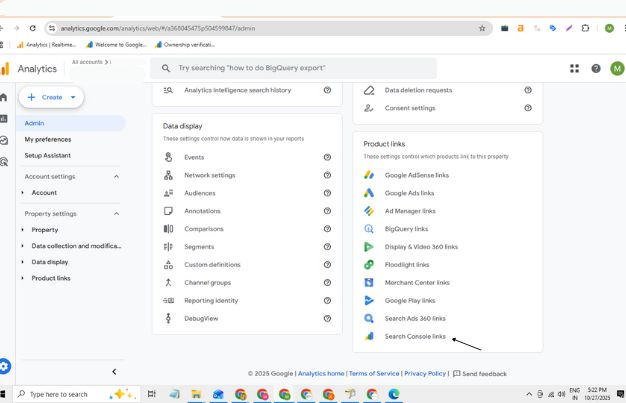
- In GA4, select Admin → under Property, choose Product Links → Search Console Links.
- Select Link.
- Choose your verified Search Console property.
- Assign the relevant data stream(s).
- Confirm.
From here, Analytics and Search Console will begin communicating with one another. Remember: the data starts flowing only after the link gets created; you are unable to unlock keyword data retroactively from before the integration.
Step 3: Enable the Search Console reports in GA4
Sometimes keyword data may not appear right away in your reports after linking, mainly because Search Console reports have to be published inside the GA4 Library. Consider:
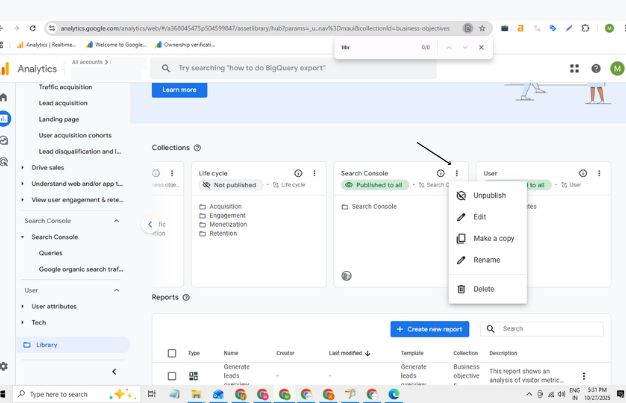
- From the menu, select Reports → Library.
- Find the Search Console report collection.
- Click on the three-dot icon (⋮) → Publish.
Now you will have the Search Console section appearing under Reports. This is where queries are found, together with keywords.
Step 4: Explore keyword data in the Queries report
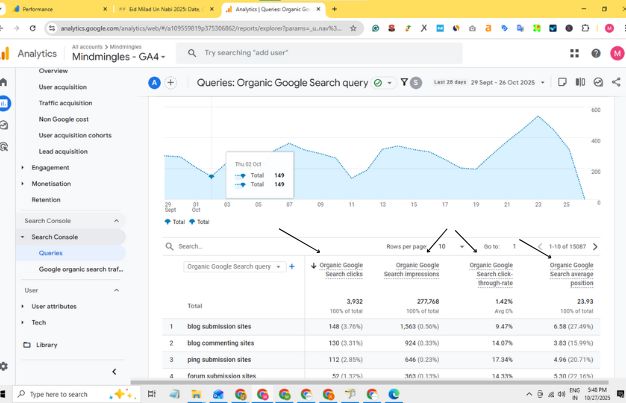
In the Search Console reports in GA4, Queries is the most important one. There, you can check out the search terms visitors would have typed in Google Search before landing on your site.
Some of the prominent metrics that are given away along with these include:
- Clicks: Number of clicks given for the link by the people
- Impressions: The frequency of a site appearing in the search results
- CTR: Rate of people’s click-through or clicks divided by impressions
- Average position: The average ranking position for the query
This is your keyword map for how to see keywords in google analytics. For instance, if a query has 20,000 impressions and only 200 clicks. This means the site is being shown many times, and not enough people are clicking through, which means your meta-title and description should be worked upon.
The other reports in the Search Console section show Landing Pages, Countries, and Devices for you to analyse how queries may vary in context.
Step 5: Capture site search keywords
For keyword analysis, consider what users may be searching on your site. This isn’t about SEO, where keywords come from organic search on Google Search, but rather the search bar within the site (assuming the website has one). By tracking these keywords, the user intent after landing on the page can be derived.
Here’s what you can do:
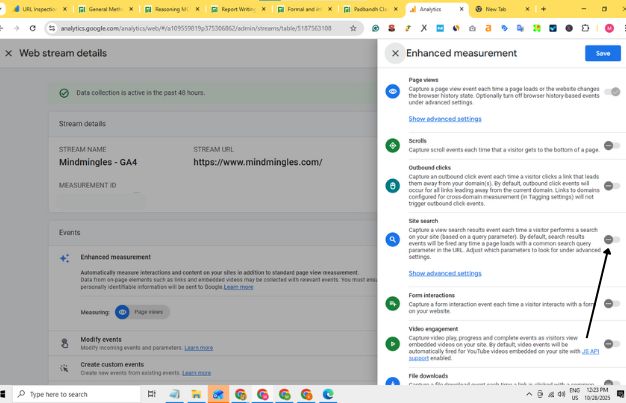
- Go to Admin → Data Streams → select your web stream.
- Enable Site Search.
- Make sure “Site search” is checked.
If your site uses query parameters such as ?s=keyword or ?q=term, make sure those parameters are included in site search settings.
From this point on, GA4 logs view_search_results events using the actual terms that people typed in. Those terms can thus be analysed through Events or custom Exploration.
What You May Observe (The Limitations)
Even after setup, keyword data in Google Analytics comes with caveats. Here are some of the things you might notice while discovering how to see keywords in google analytics:
- “(not provided)” is not going away: Not all keywords will be listed. Some are masked to protect a user’s privacy.
- Historical limits: They would allow roughly a 16-month history to be viewed in the Search Console; GA4 mirrors this
- Delays: You have to wait a few days before your data appears; no data is real-time.
- One-to-One Linking: It allows the linking of one Search Console property with a GA4 web stream.
- Restrictions on Dimensions: You can’t break down query data by every dimension you’d expect in Analytics. It’s intentionally restricted
These are the restrictions mostly discussed in any tutorial. Some of these restrictions will emphasise using Search Console directly for extensive keyword research, while others will steer you toward combining GA4 with SEO tools for long-tail keywords and competitor research.
Bringing It All Together: Example Workflow
Suppose you are doing keyword research for a sustainable fashion blog.
- You verified your site on Search Console.
- You Link GA4 with Search Console.
- You are publishing Search Console reports,
- A week later, the query reports are shown:
- “eco-friendly shoes” – 1200 clicks, 8000 impressions
- “sustainable jeans” – 500 clicks, 7500 impressions
- “organic cotton dress” – 200 clicks, 6000 impressions
You notice the 2% CTR is below average for impressions for “sustainable jeans.” This means that your meta description is not attractive enough to encourage clicks.
Meanwhile, the site search data shows that visitors keep searching for “shipping cost.” The delivery information might require a prominent placement.
Merging external keywords (Search Console queries) with internal keywords (site search) gives a broad perspective on what people want.
Best Practices For Keyword Analysis Inside Ga
The best GA methods of keyword analysis are:
- Review Trends, not instant pictures: One aims at determining whether or not a site is gaining ground by comparing one month to another in the short term.
- Segment by device or country: User behaviour differs according to Mobile/Desktop or region.
- Prioritise CTR Opportunities: Focus on queries that have high impressions but low clicks.
- Make updates to content if necessary: A page might be ranking well for queries but not giving any traffic. In that case, one can change the tone of the page through its title, headers, or on-page optimisation.
- Balancing GA4 with other Tools: Analytics gives you your performance data. Pair it with keyword discovery tools if looking for broad market trends.
Quick Reference Table
| Goal | Where to Look | What You Get |
| See organic keywords | GA4 → Reports → Search Console → Queries | Clicks, impressions, CTR, positions |
| See top SEO landing pages | GA4 → Reports → Search Console → Landing Pages | Pages get ranked and get clicked |
| Look for internal site search terms | GA4 → Events (view_search_results) or Explorations | Keywords typed into the site |
| Track trends | Comparison of time periods in the Queries report | Growth or decline in keyword performance |
Conclusion
Finding keywords in Google Analytics isn’t as simple as it was; yet, the data is available if you know how to see keywords in Google Analytics. Remember, Search Console must be linked with GA4 to obtain data for search queries, while Enhanced Measurement opens up search data for internal sites.
These groups might seem scattered, but they describe what people are looking for before coming to the website, and what they are still interested in after landing on the page. Use these insights to amend your content to be more visible by removing any friction created by the system. Gradually, this process will not only generate traffic but also trust and relevance.