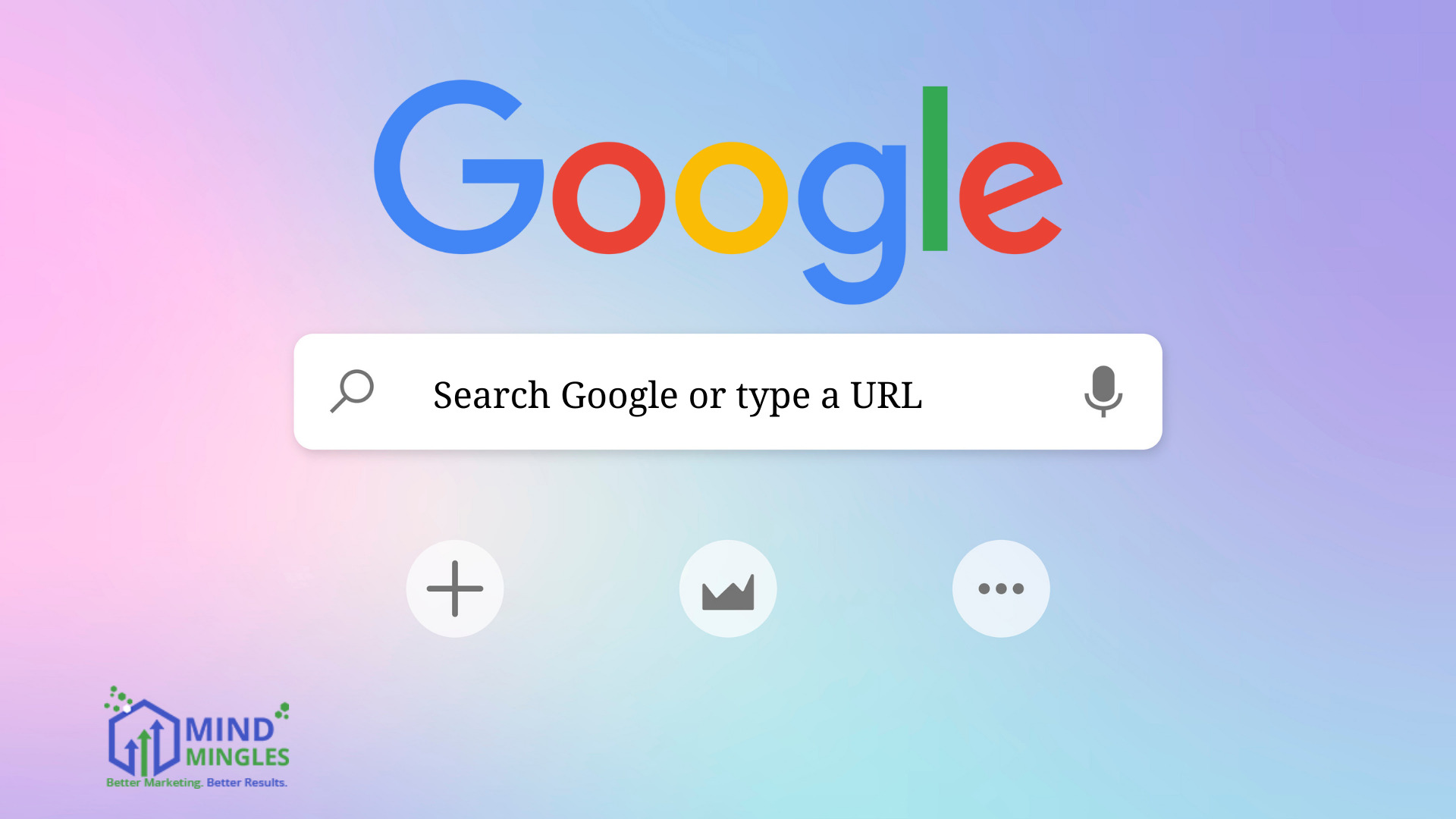
Every time you open Google, the first thing you see is the familiar text: “Search Google or type a URL.” Most of us don’t think twice about it—but here’s the interesting part: that simple box does much more than just search. You can actually customize and use it in smarter ways to improve your browsing and search experience.
Today, Google is the go-to search engine for over 90% of internet users worldwide. Whether it’s online shopping, looking up the latest news, finding quick answers, or following a DIY tutorial, people turn to Google countless times a day. Its dominance comes from constantly upgrading features to make searching faster, easier, and more helpful.
One of those upgrades is the Google Omnibox. While it may look like an ordinary search bar, it’s actually a powerful tool built into Chrome that combines search and navigation in one place. The Omnibox isn’t new—it has existed for years as the Chrome “search box,” but Google has rebranded and expanded it with smarter features.
Now, the Omnibox can do much more than search the web. It can show quick answers (like weather updates, calculations, or translations), suggest trending searches, connect with your browsing history, and even integrate with AI-driven enhancements. In short, it’s becoming a one-stop hub for information, making your search experience faster and more personalized.
What Is Google Omnibox?
The Google Omnibox is the address bar you see at the top of Chrome. But it’s more than just a place to type web addresses—it also works like a search box. You can type text, upload images, or even use your voice to search.
In 2025, Google made it even smarter with AI. Now, the Omnibox can give you instant answers and better suggestions. Whether you want to do quick math, check today’s weather, or open a website, the Omnibox makes it faster and easier.

How To Get Google Omnibox?
To ensure the Omnibox uses Google as your default search engine:
Open a new tab in Chrome.
Click the three dots (top-right) and select Settings.
Navigate to Search Engine in the left panel.
Under Search engine used in the address bar, select Google from the dropdown.
And that’s it! You’ve successfully set up Google Omnibox in your browser. Now, whenever you open your browser to search, you’ll see “Search Google or type a URL” in the search bar.
Advantages Of Google Omnibox
Google Omnibox isn’t just a search bar—it’s a smart tool that can help with many everyday tasks. Here are some cool things you can do with it:
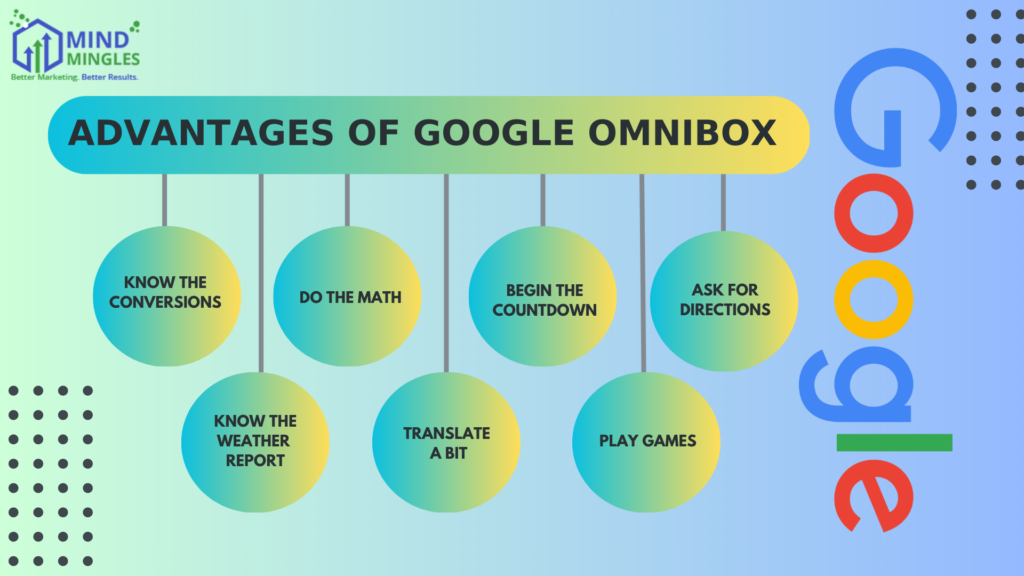
1. Quick Conversions
Need to switch between units? Just type things like 10 USD to INR or 5 kg to pounds and get instant results.
2. Do Math Fast
You don’t need a calculator—type equations like 250/5 or 128* right into the Omnibox, and it will solve them for you.
3. Check the Weather
Type weather in London (or any city), and Google will show you the latest forecast.
4. Translate Instantly
Want to translate a word or phrase? Just type translate hello to Spanish directly in the Omnibox.
5. Set a Timer
Need a quick countdown? Type timer 5 minutes and hit Enter.
6. Play Fun Games
Feeling bored? Try typing roll a dice or flip a coin into the Omnibox for a quick game.
7. Get Directions
Need to go somewhere? Just type your destination, like directions to Times Square, and Google Maps will guide you.
8. AI-Powered Insights
With AI integration (like Google Gemini), you can even ask things like summarize AI trends and get smart, AI-generated answers.
Difference Between Search Google Or Type A URL
Google uses many smart algorithms and formulas to understand what people are really looking for when they type a query. The web works in two main connected ways to show results:
Finding the right websites that contain the information.
Displaying the results in a way that matches the user’s intent.
In simple terms, every piece of information you see online is stored on a website, and Google’s job is to scan, organize, and present the most relevant ones when you search.
Search Google vs. Type a URL:
The Omnibox offers two ways to reach information: searching with keywords or typing a URL. Here’s a quick comparison:
| Criteria | Search Google | Type a URL |
| Speed | Slower (browse results) | Faster (direct access) |
| Use Case | Finding new info or sites | Visiting known sites |
| Pros | Broad results, AI autocomplete | Precise, no extra clicks |
| Cons | May need filtering | Requires exact URL |
(i) Type in the search query
When you wish to perform an online search for which you don’t have any URL, you can do that by typing in your search query into the search box. Here is how to do so:
- Enable Google Omnibox for your browser (refer to the section- How To Get Google Omnibox).
- Open a new tab.
- Click on the search box right in the middle of your screen.
- Type in what you wish to search for. Let’s say we type in- “What Is ChatGPT?” You might also see autocomplete suggestions from Google (more on that later).
- Press the Enter Key.
And you’ll see a plethora of results on the search engine results page. You can click on any result and read the results.
(ii) Type a URL
When you have the URL/link of a particular search result, you can simply use it to land on the desired site or result by following some simple steps:
- Enable Google Omnibox for your browser (refer to the section- How To Get Google Omnibox).
- Open a new tab.
- A search box will appear on the top of your screen. Sometimes the cursor itself blinks in that search box. In case you can’t find that search box, click anywhere on your screen and you’ll see- Search Google Or Type A URL in that box. Click and go to that search box.
- Copy and paste the link into the search box.
- Press the Enter Key.
Now you’ll directly land on the search results/website for which you entered the link into the search box.
So you’ve learned the basic difference between search Google or type a URL. But there are also some other differences that you can notice while performing an online search using these two methods. Let’s discuss them now-
Google Autocomplete Suggestions
Whenever you start typing something in the Google search box, you’ll see a list of suggested searches drop down automatically. You can try this right now by typing just a few words into Google.
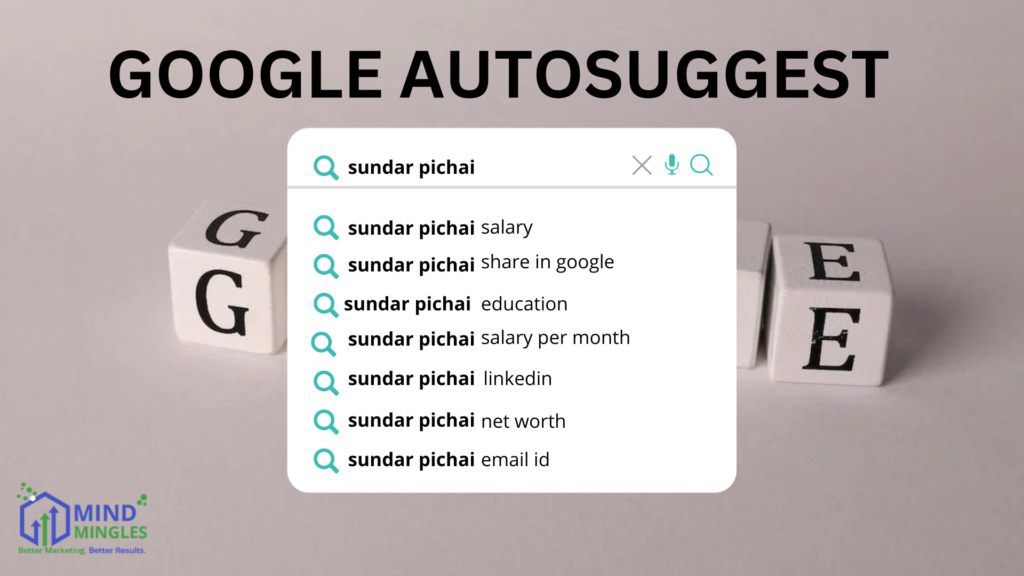
The suggestions for the Google Autocomplete search feature are based on-
Your recent searches
Popular searches by other users
Google’s algorithms are really smart at guessing what people might want to know next. In fact, it often feels like Google can read your mind by predicting possible questions around a topic.
👉 Note: This feature only works when you manually type something in the search bar, not when you paste or directly enter a website URL.
Google Voice Search
Today, searching by voice has become just as common as typing. In the same search box where you see “Search Google or type a URL”, there’s also a mic icon.
When you click the mic (and give permission to use your microphone), you can simply ask your question out loud. Google will then process your voice and show the most relevant results.
The best part? Voice Search works across all devices—mobiles, tablets, laptops, and even desktop PCs.
Search Google or Type a URL – Which One Should You Use?
Whether you choose to search Google or type a URL really depends on what you’re trying to do. Both options are useful, but in different situations.
When to Search Google:
If you want answers to a question, like “What is the height of Mount Everest?” or ‘how to pin a comment on Instagram’, you simply type the query into the search bar and press Enter. Google will then show you a list of results to explore.When to Type a URL:
If you already know the website you want to visit, it’s faster to type or paste the link directly into the address bar. For example, entering www.mindmingles.com or just mindmingles.com will take you straight to that site.
👉 Bonus Tip: One handy thing about typing URLs is that Chrome remembers sites you’ve visited before. Even if you start typing only part of the URL, Google will autocomplete the rest and take you there quickly.
How To Customize Search Google Or Type A URL?
Do you spend the lion’s share of your time researching a plethora of topics on Google? Then you must customize it to have a desired search experience of your own. So for that, you can customize Google’s Homepage:
- Enable Google Omnibox for your browser (refer to the section- How To Get Google Omnibox).
- Open a new tab.
- At the bottom-right corner of the homepage, locate the Customize Chrome option. Click on it.
- A new window will pop up on your screen.
(a) Background
The very first option that you’ll get to make alterations to is Background. Click on any one theme that you like and then pick one background of your choice from the given options. Here is the list of a few alternative backgrounds available for the Google Homepage:
- Landscapes
- Textures
- Seascapes
- Geometric Shapes
- Solid Colors, etc.
If you want to set a background apart from the available options, you can use it. All you need to do this is click on the ‘Upload From Device’ option and upload the image of your choice. Click on ‘Done.’ The background will change as you hit the Done tab.
(b) Shortcuts
Shortcuts will allow you to quickly go to particular sites that you use most frequently.
- Click on Shortcuts.
- The settings will by default show the My Shortcuts option activated. Select the Most Visited Sites option to activate shortcuts for frequently used sites. You also get the option to Hide Shortcuts.
- Click on Done.
(c) Color And Theme
You can set the base of your browser for your own good experience while online surfing.
- Click on the Color And Theme option.
- Select the color you wish to set for your browser.
- Click on Done.
How Google Processes Search Queries & Search Results?
Google is a household name today and manages to answer over 3.5 billion search queries per day. Thanks to its ease of use and splendid algorithms that generate information in a blink of an eye.
Google is a search engine- a platform that is used to get information about any topic or product/service. It utilizes advanced AI mechanisms and algorithms to differentiate between the most relevant and less relevant results. This process undertakes three crucial steps-
- Crawling: The bots called crawlers/spiders check every piece of information submitted online in the context of quality and relevance.
- Indexing: In this step, Google stores the evaluated data/information in order to compare and decide its ranking later.
- Ranking: In this last step, Google allots ranks to the various results that were previously evaluated. The most relevant result will be given a positioning in the top results of the search engine results page.
As a matter of fact, Google has over 200+ algorithms for deciding which results serve the best to users’ search queries. It delivers up-to-the-minute information to users. A lot of backend work goes on continuously to update and deliver accurate results to the users.
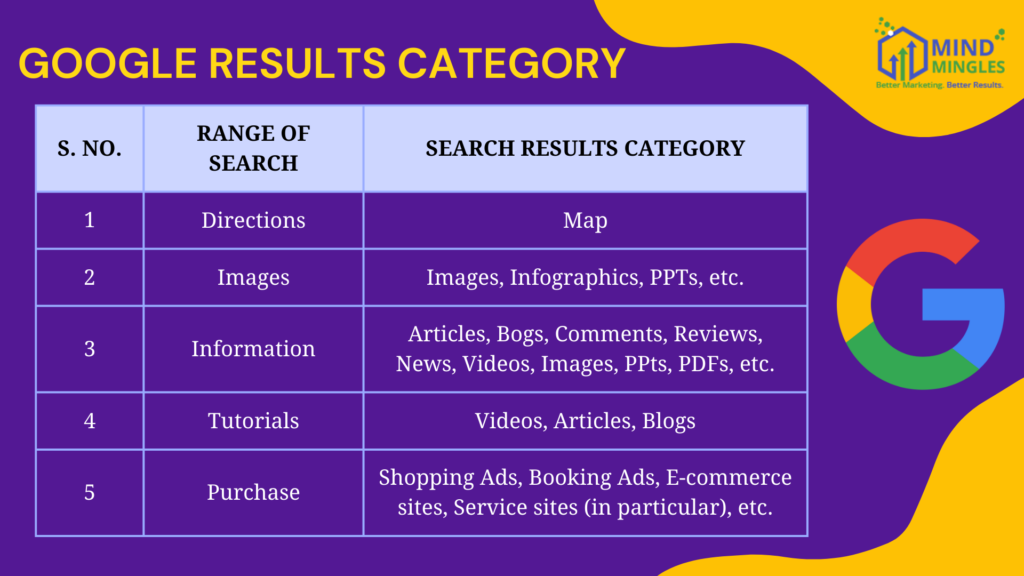
Once a user enters a search query into the search box or Omnibox, Google’s algorithms make the run and deliver results within a fraction of a second. Also, since the range of users’ search queries is quite enormous, Google provides results in differentiated categories:
Google follows strict quality measures and evaluates content pieces to match the required benchmarks of authoritativeness, expertise, and trustworthiness. Apart from that the functionality, navigation of the website also matter in its eyes for assessing user experience.
To serve the users with the best online results, the most trusted search engine not only has furnished the Omnibox with search Google or type a URL but has also laid down spam detecting measures. Where certain spam sites use cloaking as a way to ditch search engine algorithms, others use paid links to acquire better SEO Scores. After several tests and trials, Google implemented automated and manual techniques to identify illicit practices that are done to trick search engine algorithms.
10 Search Google Or Type A URL Hacks
The below-stated Search Google or type a URL hacks will make your search experience more interesting:
1. When performing a search using a keyword or a question or a key phrase, go for typing in your query in the search box (where you see “Search Google or type a URL”).
2. If you want to open a copied link, it is always better to do so in the search box on the top. Here’s a secret- you’ll see ‘Search Google or type a URL’ in that box as well (shh…..).
3. Whenever you wish to access information about a topic from a particular website, type its link in the search box in this way: ‘site:mindmingles.com YouTube’ and press the ‘Enter Key.’ This will show you the results related to that particular topic and from that site only
4. Google also supports search by image. If you want to know the source of an image, discover similar images, or see the backlink profile of images, Google reverse image search is a wonderful option.
5. This trick will come in handy while designing creatives or infographics. When you need an image with a transparent background, you can put Search Google or type a URL box to use. Just type in ‘png’ with whichever image you want to search for. For instance- apple png. Press the ‘Enter Key.’ Now go to ‘Images,’ and click on ‘Tools.’ Go to ‘Colour’ and select ‘Transparent’. You’ll be shown image results with a transparent background.
6. Along with background, Search Google or type a URL box can also help you find the image of desired dimensions. All you need to do is- type the image size into the Google Omnibox. This is how you need to type in the search box- Leonardo DiCaprio imagesize:the desired image size. Press the ‘Enter Key.’ Go to images and you’ll get results as per your specifications.
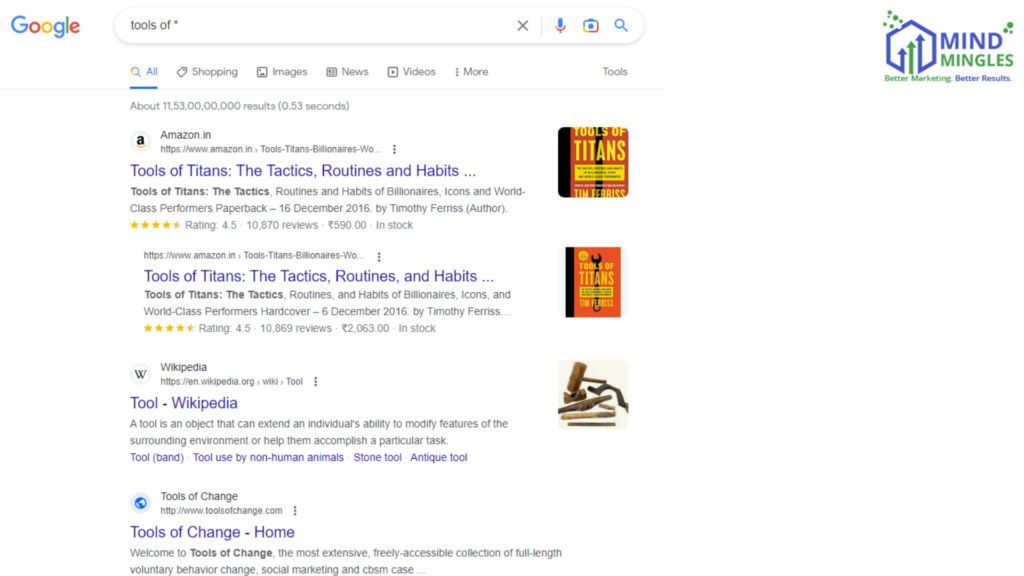
7. Asterisk Wildcard (*) is another splendid feature of Google. At times when you know partly about a query or you simply forgot it, you can use this hack. Just type in what you remember, press the ‘Spacebar Key,’ and put ‘*’ sign. Lastly, press the ‘Enter Key.’ Take this for example: let’s assume we don’t know the complete book name, so we type- tools of’ *.’ Press the ‘Enter Key.’ It’ll give us the book name automatically. However, sometimes it also shows results other than expected.
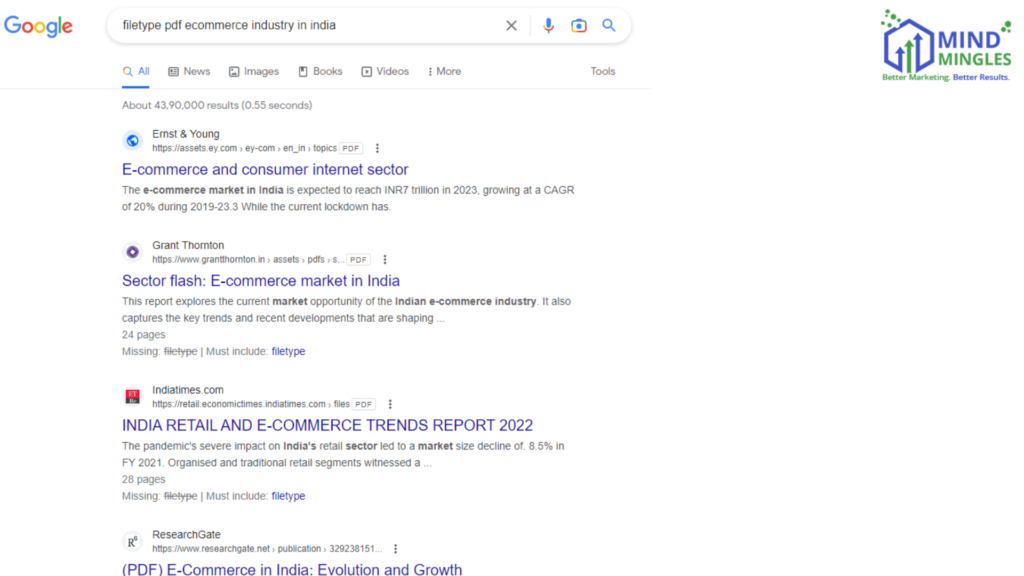
8. Search Google or type a URL prototype also works in a precise format for the filetype. In simple words, you can search for information in a particular format/file type. For instance- ‘filetype pdf e-commerce industry in India.’
9. You might have come across an article or a publication that doesn’t reflects on its date of publishing. In such a scenario, you can use a very genuine trick. While on that webpage, press this shortcut key: Ctrl + U. It’ll redirect you to its source page. Now press the shortcut key: Ctrl + F and type- ‘date’ in the Find box. Click the ‘inverted v’ icon in the Find box. It’ll highlight the ‘datePublished’ and ‘dateModified’ or ‘dateUpdated’ in the source. This is how you can get that idea.
10. Has your device/mobile got misplaced or stolen? Then type in ‘find my phone/device’ in the Search Google or type a URL box. Press the ‘Enter Key.’ Now go to the very first search result or this site- for phone and for any other device. Sign in with the Gmail account logged into your lost phone/device. You can ring the phone or sign out or erase the data on the phone/device.
What Is Google Custom Search?
Google Programmable Search was introduced in 2006 with the intent to take the search experience to a whole another level. It fostered the users’ search experience especially those in the research field or web development field. Programmable Search by Google allows users to set up a customized search engine for themselves.
Users can make such moderations in the Settings that they only see search results from the selected sites. This saves time by eradicating unwanted sources and delivering filtered results. The best part? It supports the same features as Google’s uncustomized search engine does. You can also connect your Google AdSense and Google Analytics Account with it. So if you want to create a search engine with your own preferences, visit this link.
Get Improved Google Rankings With Mind Mingles’ SEO & SEM Services
Online marketing has the potential to drive sales to businesses. At Mind Mingles, we have comprehensive plans for search engine optimization and search engine marketing. We design customized strategies for different businesses across a wide range of industries. With our flexible approach and rigorous strategies we have escalated conversion rates for many business firms.
Our SEO Services and SEM Services can provide your business with a unique identity across multiple search engines. We also provide Google Penalty Recovery Services so that you can enjoy enormous web traffic without any hassles.
Get In Touch With Us Now!
Frequently Asked Questions (FAQs)
#1. What Is Search Google Or Type A URL?
Search Google Or Type A URL is the feature of Google Omnibox that allows users to perform online searches via two methods-
- Either by copying and pasting a link in the address bar at the top
- By simply entering the search query into the search box.
#2. What Does URL Stand For?
URL stands for Uniform Resource Locator. An URL is a web address that redirects the users to a designated site or file destination.
#3. How Should I Type The URL In Google Search Box?
There are multiple ways to type a URL in the Google search box-
Directly With Website Name and ‘.com’- mindmingles.com
With ‘www’ and ‘.com’- www.mindmingles.com
With ‘https://’- https://mindmingles.com/
Note: Not all sites necessarily use ‘.com.’ Some use-
- .gov
- .in
- .edu
- .org
- .eu
#4. What Is Google Autocomplete?
Google Autocomplete is a feature of Google that anticipates in advance what a user might be willing to find an answer for. You must have noticed whenever you type something in the search box, you see a number of relevant suggestions. It saves time and eases the process of surfing.
#5. Which Is More Better- Search Google or Type A URL?
If you know the keywords or key phrases (words that you enter into the search box), use the Google search box. Alternatively, you can choose to get redirected to a webpage if you’ve its URL.