In today’s interconnected world, there are many situations where you might prefer not to share your personal phone number—whether for business websites, professional communications, or maintaining privacy during travel. Google Voice offers a versatile solution by providing a secondary phone number that operates over a VoIP (Voice over Internet Protocol) system, enabling seamless cross-border communication using data or Wi-Fi. This is a detailed guide that will give you a walkthrough of Voice and its uses. So make sure to read it till the end.
What Is Google Voice?
Launched in 2009, Google Voice is a free service for Google Account/Google Workspace Account users using which they can call and chat without having to exchange their personal phone numbers.
| Service Name: | Google Voice |
| Also Known As: | Voice |
| Launched In: | 2009 |
| Purpose: | To provide VoIP services for Google Account/Google Workspace Account users |
| Device Compatibility: | Android, iOS, and Web |
| Browser Compatibility: | Chrome, Microsoft Office, Firefox and Safari |
| Services Offered: | Voice call services, Text message services and Voicemail services over the internet |
Before coming under Google’s holdings, Voice was renowned as GrandCentral and was launched to provide a free secondary contact number to users which serves all the expected functions of an actual number. It is noteworthy to know what you need to set up your Voice number:
- First, you need a Google Account/Google Workspace Account.
- Another thing that you’ll need is a US-based phone number. At present, Voice is only available in EMEA (Europe, Middle East, and Africa) regions.
With a Google Account or Google Workspace Account (something most people already have), Google Voice lets you manage all your communications across devices without the hassle of multiple phones or SIM cards. It’s a convenient solution for both personal and professional use. Keep reading to explore Google Voice in detail and learn how to set it up for your needs.
Key Features Of Google Voice
Google Voice is getting better all the time, with new AI features and smart integrations that keep it useful and up to date. Here are five key features you should know about:
- Call Forwarding: Google Voice lets you forward calls to another device, so you never miss important calls. You can also set rules for when and where calls should be forwarded. Just keep in mind that your carrier may charge extra when linking certain devices.
- Multi-Device Compatibility: With one Google Voice number, you can stay connected across different devices—like your phone, laptop, tablet, or desk phone—making communication simple and flexible.
- AI-Powered Spam Filtration: Google Voice uses AI to detect and block spam calls and texts, sending them straight to a spam folder so they don’t bother you
- Multi-Level Auto Attendant: On paid plans, businesses can use an auto attendant that routes calls to the right department or person. It also lets you set up custom greetings for a more professional touch.
- Ring Groups: Businesses can set up ring groups so multiple phones or extensions ring at the same time for one number. This helps share calls across a team and manage workflows smoothly.
👉 Note: These features depend on the plan you choose (Starter, Standard, or Premier), with more advanced options available for businesses.
How To Use Google Voice For Business Use?
Below is the step-by-step procedure to get your dedicated Google Voice business number and set it up for smooth operations:
(i) Visit Voice Homepage
On the homepage of Google Voice, select For Business and you’ll be redirected to a new page.

(ii) Select A Plan
Then you’ll need to select a plan. Voice provides three distinct plans starting from 10 USD per user per month. Scroll down a little on your screen or simply click on Get Started to view pricing plans.
Bear in mind that your Google Workspace Account needs to be logged in for this purpose. When you click on Select to proceed with a plan, you’ll see a notification like this:
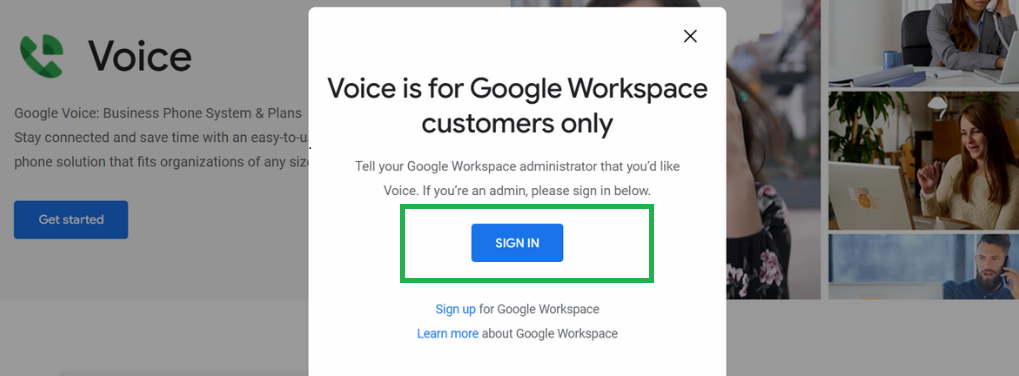
So, hit the Sign In option to log into your Google Workspace Account. In case you don’t have a Workspace account, you will have to create one and agree to the terms of use. Once you’re logged in, read the plan features thoroughly and then click on the Get Started option.
(iii) Continue & Give Area Code
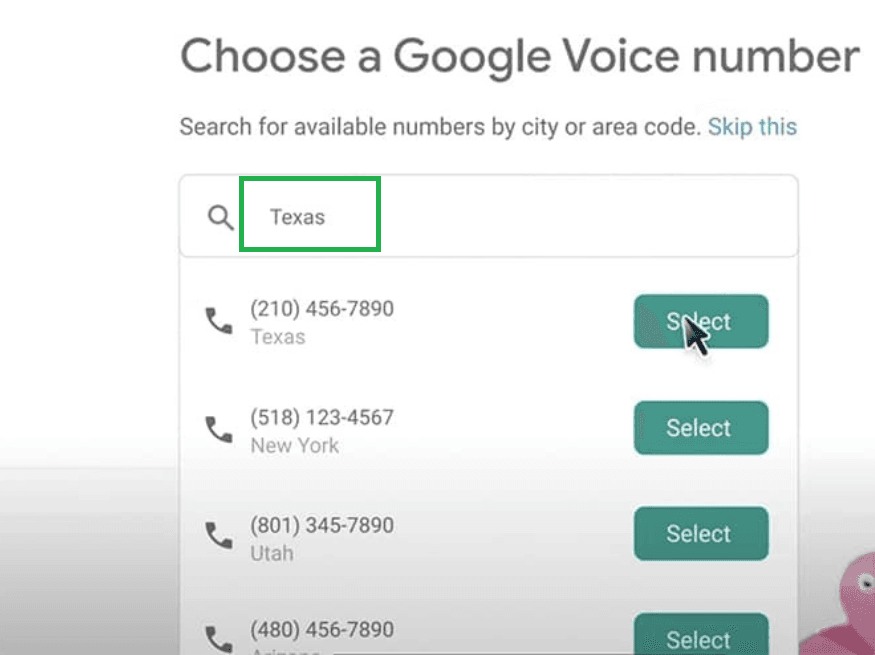
After reading the terms and conditions of use, click on Continue. Afterward, enter your country code in the box.
(iv) Select A Number
Then Voice will show you a list of numbers available based on your location. Once you select a number, you’ll get a message displayed on your screen that reads- “You’ve selected (selected phone number).” Click on Verify to proceed.
(v) Verify Your Existing Number
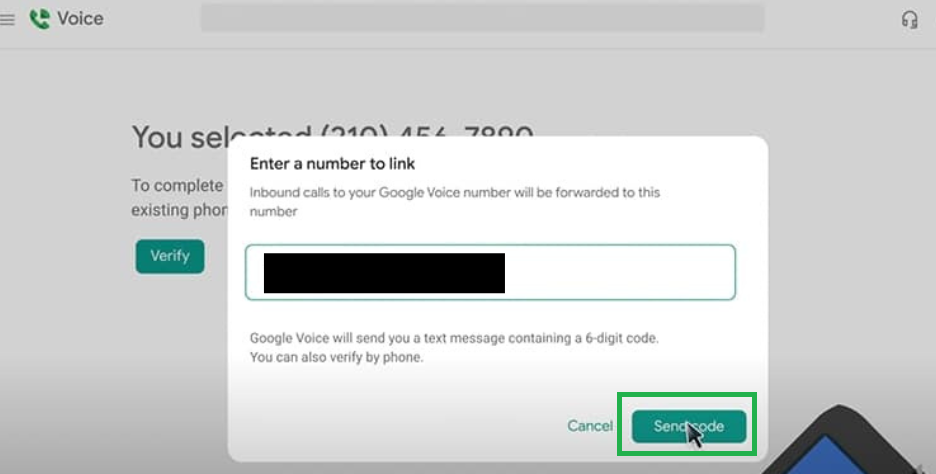
Next, Google will send you the confirmation code which you can receive either via text or call. For this, you need to click on Verify, enter your existing phone number that you want to link and proceed to verify.
(vi) Claim Number & Finish The Set Up
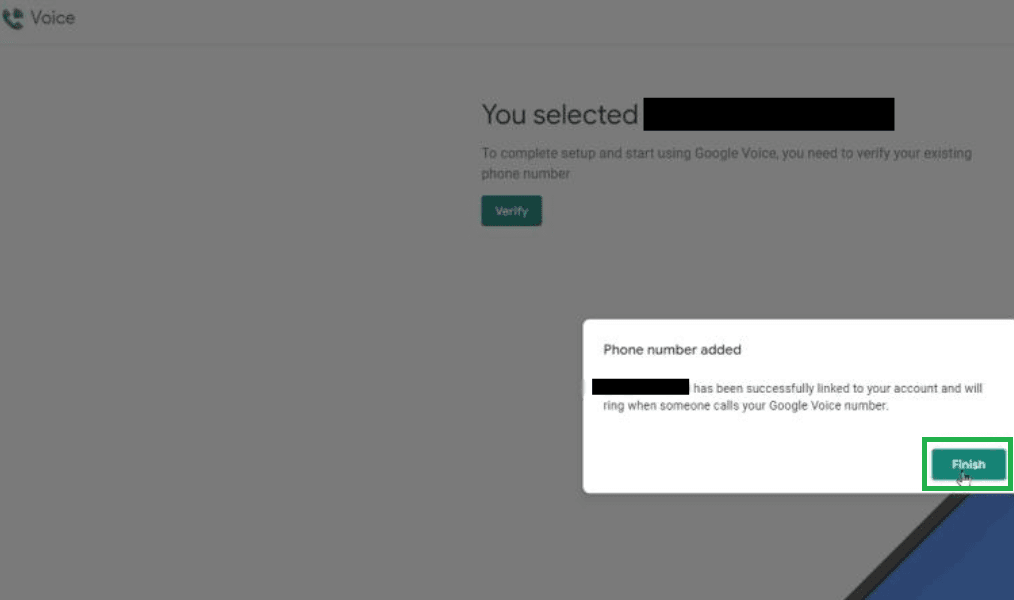
When you’ll be assigned as a User of Google Voice after completion of the above steps, claim your Voice number. Click on Claim and proceed to finish your set up. You can add more users to the extent of users allowed as per the plan you selected earlier in Step 2.
(vii) Download The Voice App On Your Mobile
Lastly, you need to download the Voice app on your mobile and link it with the same Google Account. Now you’ll be able to receive and make calls, and send text messages to people from multiple devices that are connected to your Google Workspace account.
How To Use Google Voice For Personal Use?
In a new tab in Chrome or any other compatible search browser (refer to the table above), open this link- https://voice.google.com/. Bear in mind that your Google Account needs to be logged in for this purpose. So once the Voice site opens up, hit the Sign In. In case you don’t have a Google account, you will have to create one and agree to the terms of use.
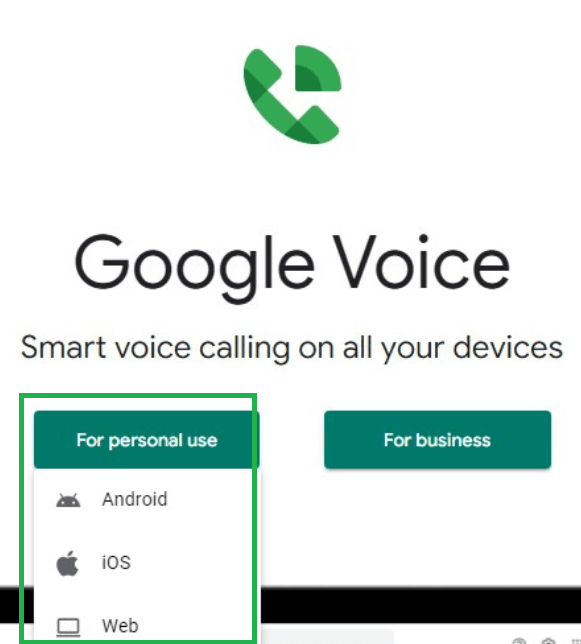
1. For personal use, you’ll have to select a device from the given options: Android, iOS, or Web. Then you’ll be redirected to a new window from where you can download the Voice app; ensure that you use your smartphone for downloading the app on Android or iPhone. Then follow the on-screen instructions to proceed. You’ll be required to enter the area code to get a number based on your location.
2. Select one of the displayed numbers for yourself.
3. As you proceed to set up Google Voice, you’ll be asked to submit a verification code that will be sent to your existing number for verification. So follow the on-screen instructions.
4. Proceed to claim your number and finish setting up your Voice account. Note that you can only register once for Voice using a number; if an existing number is already claimed, you need a new number to sign in.
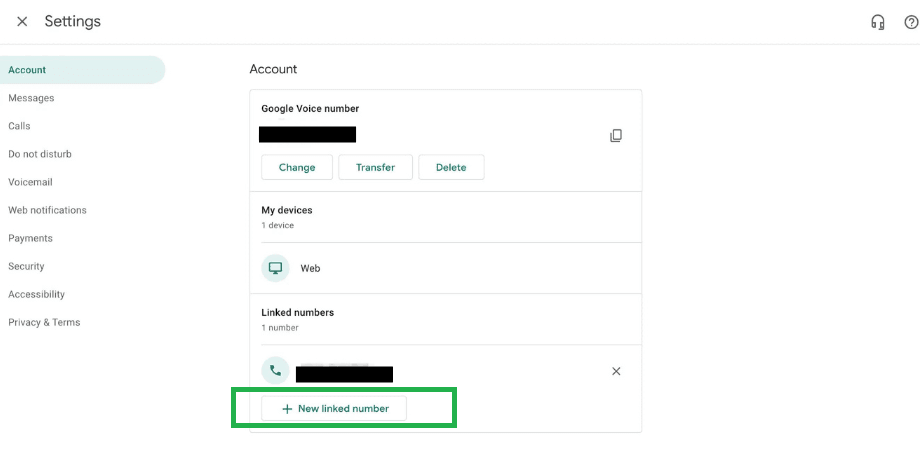
Now you can enable Call Forwarding on multiple devices connected to your G-mail account.
NOTE: Also, remember that your Voice number can get deactivated if you don’t use it for 30 days. So ensure you make at least one call or send one text message every 30 days using Voice.
How To Make Your First Google Voice Call?
- To make a call using Voice, open the Voice app on your phone or visit the website homepage link- https://voice.google.com/.
- Then go to the Calls tab and enter the number you want to dial or search for a saved number. Remember to enter the country code before the number for making international calls.
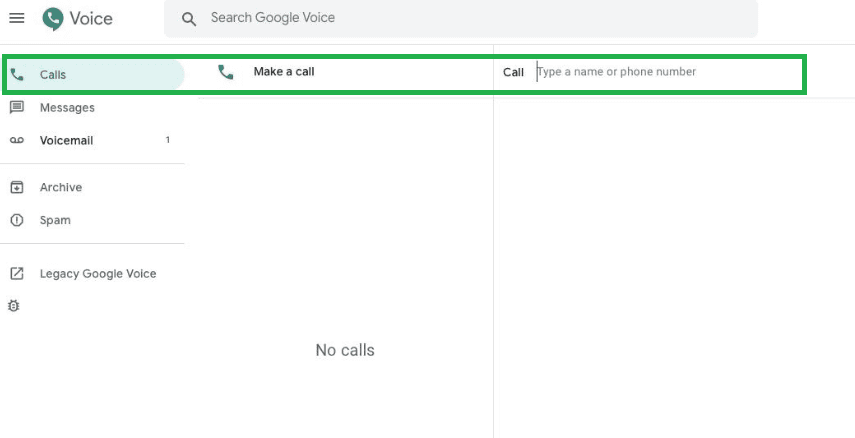
- Allow the required permissions, for instance, microphone access or access to contacts to enable the calling.
Now you know which number to handover when you want to keep your personal number private.
How To Make Your First Video Call Using Google Voice Number?
Google Voice is mainly designed for voice calls, texts, and voicemail. However, it doesn’t support direct video calling within the app. To make a video call, you’ll need to integrate it with Google Meet or Google Hangouts (older accounts), which connect seamlessly with your Google Account.
Steps to Make a Video Call with Google Voice + Google Meet:
Sign in to Google Voice
Go to voice.google.com or open the Google Voice app.
Make sure you’re signed in with the same Google Account you use for Meet.
Open Google Meet
On desktop, go to meet.google.com.
On mobile, open the Google Meet app (formerly part of Hangouts).
Start a New Meeting
Click on “New meeting” and select either Create a meeting for later or Start an instant meeting.
Invite the Person You Want to Call
Share the meeting link or enter their email/phone number linked to their Google Account.
If they use Google Voice, they can join from their linked device.
Join the Video Call
Once the other person joins, you’re ready to talk face-to-face.
How To Send Your First Text Message Using Google Voice?
Google allows sending messages using the Voice service to individuals and groups of up to 7 recipients (plus the sender). Remember that if you send a message to a non-Google Voice number, the character limit must be less than or equal to 160 characters only. You can even send GIFs and images but if they’re larger than 2 MB you can expect to see their quality impacted. Here is how to send text over Voice number:
- Open the Voice app on your mobile phone or click on this link- https://voice.google.com/.
- Afterward, select the Message tab.
- Select the Compose/Send New tab.
- Choose a number from your contact list or enter a number manually.
- Then type in your message.
- Hit the Send option.
Is Google Voice Free?
You can set up Voice for free, however, certain features, like porting the number or changing it, are chargeable. In addition, if you’re using this service to connect with another US-based or Canadian-registered Voice number, it’s free. But, international calls are chargeable, continue reading to discover more about that.
Google Voice Prices
Normal calls and outbound calls are free in certain parts of the US and Canada with Voice. However, Google’s VoIP service, Voice, attracts certain costs for making international calls. In addition, Voice rates also depend on what device you’re using. For instance, in Argentina you will be charged as follows on per minute basis:
| Country Name | Mobile Charges (in USD) | Landline Charges (in USD) | Special Services Charges (in USD) |
| Argentina | $0.11 | $0.02 | $1.10 |
For more details on country-wise Voice rates, refer to this table- https://voice.google.com/u/0/rates.
Furthermore, there are three different Voice price plans for businesses with contrasting features which are chargeable per user per month.
How Google Voice Works?
Voice works on Voice Over Internet Protocol (VoIP) system and allows users to make calls using an alternate number. Voice number works with laptops, desk phones, and mobile and also provides integration with:
- Chrome
- Microsoft Edge
- Firefox
- Safari
You can use this alternate number with any carrier and phone (even the keypad phones which are supported by the internet). Voice also provides transcripts for messages and supports voicemail service if you aren’t available to pick up the call on any of your integrated devices. However, unlike many other VoIP services, Voice doesn’t support video calling unless used with an integrated service like Google Duo.
(a) Voice Calls:
We have already discussed how to make a phone call using Voice above in this article. Voice calling has features similar to a normal call. You can put the call on hold, mute your audio, make a conference call (group call), etc.
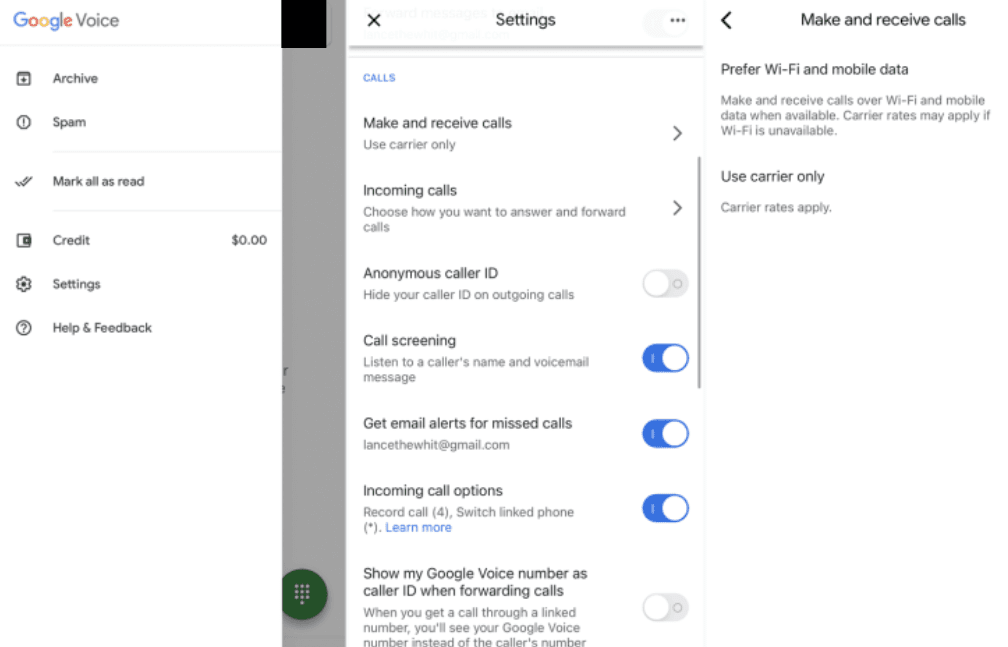
In addition, you can decide how you want to get notified about missed calls, put your phone on DND, and switch to a Voice number for making any calls directly from your device’s phone app. You can also use the Call Forwarding feature to make or receive calls across multiple devices including your website.
(b) Voicemail:
If you can’t take a call for any reason, it’ll automatically go to voicemail after a couple of seconds. However, if you want to put the call into voicemail yourself, press 2 and it’ll be done. The caller will hear “The Google subscriber you have called is not available. Please leave a message after the tone,” message, if you’ve not customized or recorded your voicemail greeting.

You can access voicemails from your dashboard later. Voice provides you an alternative to receive transcripts of your voicemails on your email.
(c) Text Messages:
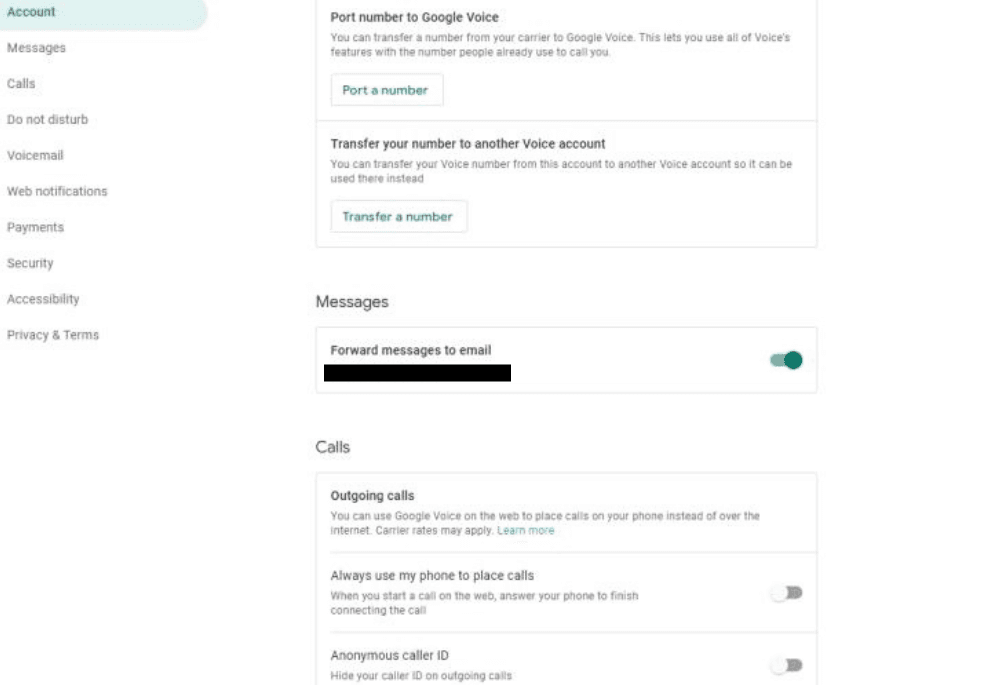
The procedure of sending text messages using Voice has been discussed earlier in this article. You can check messages from your dashboard and use your contact list or punch in the number of the receiver. Remember that whenever you use any other app for sending messages (even Google messages), your actual number (not your Voice number) will be shown to the recipient. Nevertheless, using Google Hangouts with your Voice number will do the needful.
How To Use Google Voice In India?
Voice is not supported in India because if you try to Sign In, you’ll see a message stating- “Sorry, Google Voice isn’t supported in your country yet.” It means Voice is only available to use in a few selective countries for now, which include- Canada, Denmark, France, the Netherlands, Portugal, and the contiguous United States, etc. However, if you want to use Voice in India or any other country where it is not available, you can try using Voice with a VPN service by setting the servers in the US. This change of IP address to a server located in the US will do the needful.
List Of Countries Supporting Voice
| S. NO. | COUNTRY NAME |
| 1 | Belgium |
| 2 | Germany |
| 3 | Ireland |
| 4 | Italy |
| 5 | Sweden |
| 6 | Portugal |
| 7 | Spain |
| 8 | Switzerland |
| 9 | Netherlands |
| 10 | U.K. |
| 11 | U.S. (excluding Alaska, Hawaii, the US territories of American Samoa, Guam, Northern Mariana Island, Puerto Rico, and the US Virgin Islands) |
| 12 | France |
| 13 | Denmark |
| 14 | Canada |
Although Voice service isn’t currently available in India, you can call a person in India using a US-based Voice number. Alternatively, you can use Google Hangout for making international calls.
Different Google Voice Plans
Voice provides three different plans for businesses:
(I) Starter Plan- 10 USD per user/per month
This plan provides access to but isn’t limited to:
| 1 | Adding up to 10 users (at country-specific domestic level) |
| 2 | Call Forwarding |
| 3 | Google Calendar Integration |
(II) Standard Plan- 20 USD per user/per month
This plan provides the following features in addition to those in the Starter Plan:
| 1 | Adding unlimited users (from Us-based domestic and regional locations) |
| 2 | SIP Link |
| 3 | Ring Groups |
| 4 | Desk phone and ATA support |
| 5 | Ad-hoc user call recording |
(III) Premier Plan- 30 USD per user/per month
This plan provides the following features in addition to those in the Standard Plan:
| 1 | Adding unlimited users (from Us-based domestic, regional as well as international locations) |
| 2 | Advanced reporting (BigQuery) |
| 3 | Automatic Ad-hoc user call recording |
Alternatives To Google Voice
While Google Voice is a popular VoIP solution, it isn’t the only option available. Over the years, many other apps and services have entered the market, offering similar—or in some cases, more advanced—features. Users often explore alternatives when Google Voice falls short of their needs, such as:
• No toll-free numbers: Businesses that want a toll-free line for customer support can’t get it with Voice.
• Limited team collaboration: Since Google Voice doesn’t have true shared plans, larger teams may struggle with coordination.
• Higher pricing for features: Some features that come standard with other VoIP services are available only at a higher cost with Voice.
• Lack of third-party integrations: Many businesses rely on CRM, project management, or helpdesk tools, which don’t integrate directly with Voice.
• Restricted international calling: Only the Premier Plan supports global calling, which may not be cost-effective for smaller teams.
If you’re considering switching or simply want to explore other options, here are some reliable Google Voice alternatives that cater to both individuals and businesses:
⊛ RingCentral – Robust business communication suite with video, messaging, and integrations.
⊛ Ooma – Affordable VoIP option with both residential and business plans.
⊛ Dialpad – AI-powered calling with strong team collaboration features.
⊛ Sideline – Great for small businesses needing a second number on one phone.
⊛ Nextiva – Enterprise-level VoIP with CRM and advanced call management.
⊛ OpenPhone – Modern, flexible business phone system for startups and small teams.
⊛ Skype – A classic choice for personal and small business use.
⊛ Grasshopper – Virtual phone system designed for entrepreneurs and small businesses.
⊛ Ringblaze – Focused on customer support with easy-to-share numbers.
⊛ Telzio – Feature-rich VoIP with global scalability.
Frequently Asked Questions (FAQs)
#1 Can I Send Videos Using Google Voice?
No, Voice doesn’t support the exchange of certain MMS formats like videos.
#2 Which Operating Systems Does Voice Support?
Voice primarily supports three operating systems which are: Windows, ChromeOS, and MacOS. However, for smooth functioning ensure keeping your OS updated for the latest versions.
#3 What Types Of Calls Are Allowed With Google Voice Number?
Voice supports two types of voice calls: (i) PC To Phone Calls and (ii) PC To PC Calls.
#4 What Is A VoIP Phone Number?
A VoIP (Voice over Internet Protocol) number works on a technology that allows users to make phone calls over an internet connection.
#5 Which VoIP Service Is The Best?
There are plenty of VoIP services available with distinct features, device compatibility, and plans. So the best is none other than the one that fits appropriately to your requirements of usage.
Wrapping Up
Google Voice is a splendid way to connect with people over a voice call, text messages, and voicemail without sharing your personal mobile number. It helps people utilize a single contact number for various purposes without switching between the carriers and save their money.
Voice is useful for both personal and professional reasons when you require it to connect via a Voice over IP (VoIP) protocol. This allows businesses to integrate various extensions and department lines without needing them to be sitting under the same roof. However, it shares close competition with other VoIP services including OpenPhone, RingCentral, Nextiva, etc.