
We’ve all been there: you hit Send, and instantly wish Outlook had a built-in “time machine.” Perhaps you forgot the attachment, spelled the name of your boss incorrectly, or accidentally sent a meme that was intended for one friend as replied-all. That sinking feeling? Remember, Outlook actually has a feature that may save you. However, here is the catch: it is not as magical as it may sound, and it can only work under some conditions. Read this article if you are wondering how do I recall an email in Outlook in simple steps. Learn how to take back a sent email, what you can do if it doesn’t work, and some easy tips to avoid mistakes in the future.
Why You Might Want to Recall an Email
Here are the top reasons you might need to know how do i recall an email in Outlook:
- Wrong Recipient Disaster: You may want to send it to someone in HR, but you sent it to the wrong person with the same name as Accounting (who now knows way too much).
- Reply All Chaos: You have accidentally looped in 200 colleagues with your quick “Thanks!” or you have revealed the weekend plan.
- Attachment Oops: You may have sent the mail, but the file you were supposed to send is sitting untouched on your desktop.
- Awkward Typos: Misspelling your boss’s name or writing “pubic meeting” instead of “public meeting” (yep, it happens).
- Half-Baked Drafts: Shared an idea without checking facts or finishing the thoughts.
- Sensitive Slip-ups: Shared confidential info with the wrong person.
Step-by-Step: How do I Recall an Email in Outlook (Desktop App)
Quick pre-check (do this first): ensure you are on the desktop version of Outlook, your mailbox is an Exchange / Microsoft 365 mailbox (they are in the same organization as the recipient), and the message remains in Sent Items.
- Open Outlook and click Sent Items.
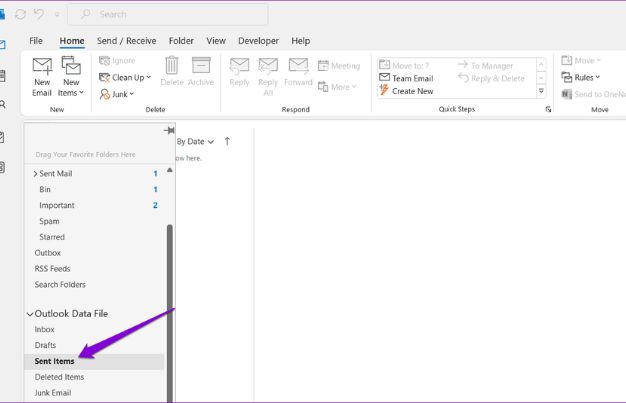
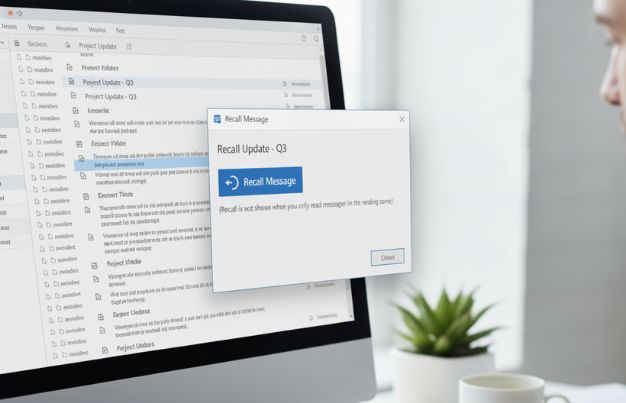
- To open the message you want to recall, simply double-click on it to open it in its own window. (Recall is not shown when you only read messages in the reading pane.)
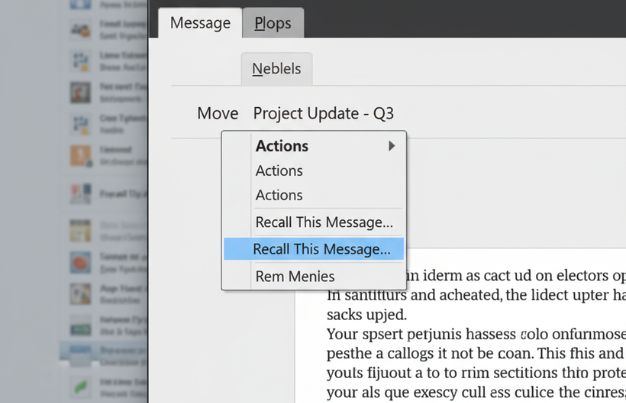
- Open the message window, and switch to the Message tab. In the Move group, click Actions Recall This Message.
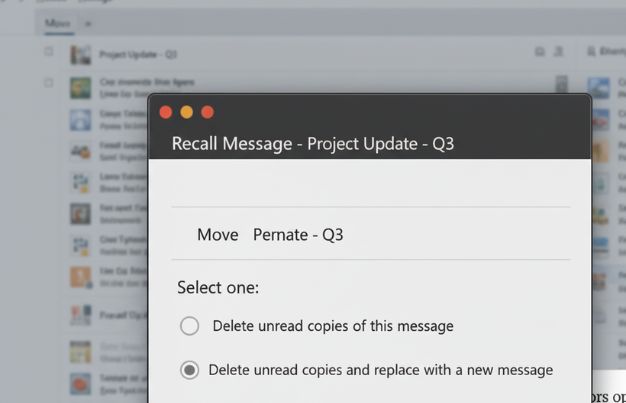
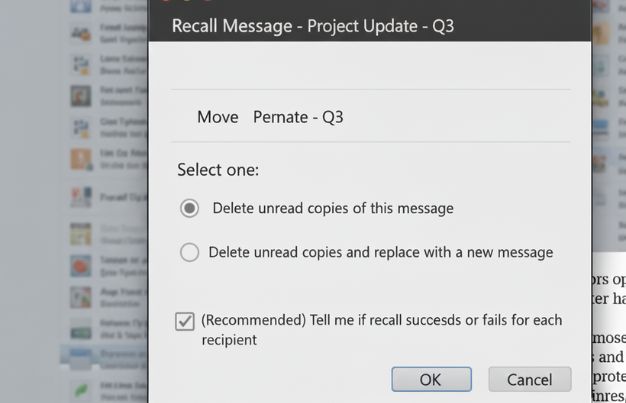
- In the dialogue that comes up, select one:
- Delete unread copies of this message
- Delete unread copies and replace with a new message
- (Recommended) Check “Tell me if recall succeeds or fails for each recipient.”
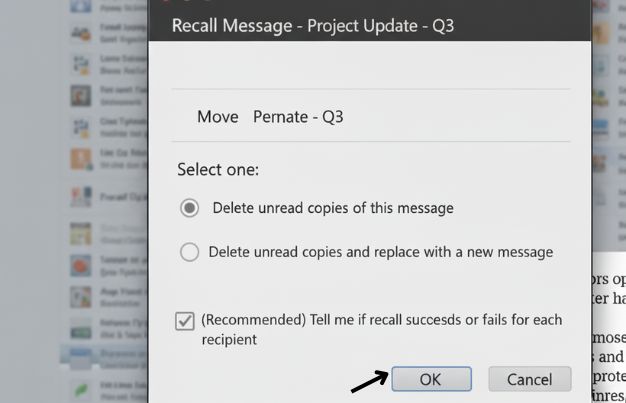
- Click OK.
- In case you choose to replace, compose a replacement message and send it. Outlook will make an attempt to perform the recall on the server, and you will receive success/failure reports in the Inbox.
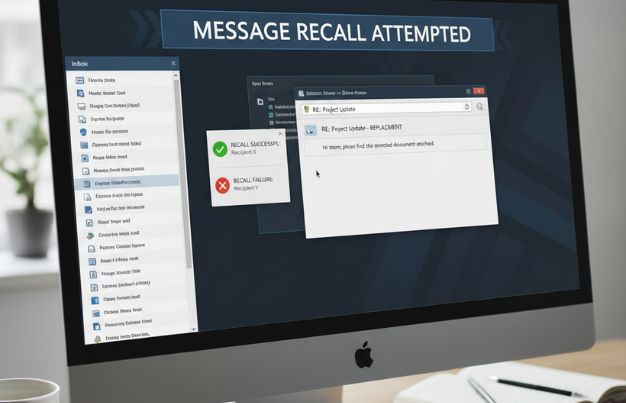
Note: The recall feature will not work if the recipient has already opened the email, moved it out of their Inbox, or is using a non-Exchange account (such as Gmail or Yahoo).
Can You Recall Emails in Outlook Web or Mobile?
Short answer: No, you can’t. The traditional Recall This Message button is only found in the Windows desktop version of Outlook and would be linked to Microsoft Exchange/Office 365 servers. When you are on the Outlook web (OWA) or the Outlook mobile application, a recall option will not appear at all.
However, there is no need to panic; Microsoft has provided a partial rescue to web and mobile users: Undo Send.
- Undo Send: This option allows you to delay sending an email (up to 10 seconds on average). before sending. Within this window, you are able to cancel the email before it is really sent out of your Outbox.
- To enable it on Outlook web app, go to Settings, Mail, Compose and Reply, Undo Send and select your delay time.
- In mobile mode, the Undo Send feature usually appears as a little banner on the bottom right upon sending.
Can You Replace an Email in Outlook?
Outlook’s recall feature doesn’t just let you delete an unread message; it also offers the option to replace it with a new one. You’ll see two choices:
- Delete unread copies of this message
- Delete unread copies and replace with a new message
When you choose the second option, Outlook will create a new compose window with your original data. You may edit, add the lost file, correct typing errors, or even start all over again and send it.
The trick: It only works when the recipient has not opened the initial email and is using Outlook desktop, and both are using the same Exchange/Office 365 platform. When they have already opened it, or are using Gmail, Apple Mail, or even Outlook Web, then your replacement appears as a follow-up email on its own – the original one is not affected.
In brief: yes, Outlook can be used to replace, but under optimal conditions. Otherwise, resend a corrected follow-up and gracefully accept it.
Undo Send vs Recall: What’s the Difference?
At first glance, Undo Send and Recall might seem like the same thing, but they work very differently.
- Undo Send: Available on the desktop, mobile, and the Outlook Web, it provides you some time (typically 5-30 seconds) at the end of the Send button to cancel the email before it leaves your Outbox. Imagine it is a time machine of the oops moments.
- Recall: This attempt to delete or exchange a sent email in the mailbox of the recipient is exclusive to Outlook desktop and the Exchange/Office 365 suite, only when it is an unread email, and the sender and recipient are on the same server. It is not a sure success.
Alternatives if Recall Fails
The Outlook recall tool is no magic bullet, because the email can be read, filtered, or delivered to a third-party mail system not in your Exchange/Office 365 infrastructure. A timely act is important when recall fails to prevent confusion, embarrassment, or possible errors.
- Send a Corrected Follow-Up Email: Write a short, cordial email that acknowledges the mistake that happened in the past and provides the proper information, attachment or description. Be professional, yet light-hearted.
- Use Clear Subject Lines: Include phrases such as Correction, Updated Info, or a Revised Document in the subject. This is a clear indication to the recipient that the new email replaces the earlier one.
- Own the Mistake Gracefully: A short apology or a light recognition can help alleviate embarrassment, particularly in internal emails or in the workplace.
- Avoid Future Oops: Check Before Writing: Check the Delay Delivery option, use the Undo Send option, check the recipients, and add the files before typing the email body.
- Consider Direct Follow-Up: If the email was critical, a quick call or chat to clarify can save bigger issues later.
Pro Tips to Avoid Future Email Mishaps
Here are some professional hacks to keep your inbox from becoming a regret zone:
- Delay Delivery / Undo Send: Give yourself a 5-10 minute buffer.
- Check Recipients: Before sending, check To, Cc, and Bcc.
- Insert Files First: Don’t panic when you think you have forgotten to attach something.
- Check Final Drafts: Have a quick pause and reread to check typing or tone.
- Templates: Standardised templates decrease errors in a hurry.
- Test Critical Emails: Run a trial on yourself and verify formatting and links.
- Take a Break: Never press the send button when stressed or in multitasking mode.
Conclusion
Being aware of how do i remember an email in Outlook can actually be useful when you commit small but stressful errors, such as sending an email too soon, forgetting an attachment, or accidentally addressing everyone. Recall and Undo Send are saviours, yet do not make Outlook a perfect application. One should be familiar with their usage, when and how to use them, their limitations, and have other options to correct them, such as with follow-ups or a face to face communication. In addition, by implementing a few basic practices like delaying delivery, verifying recipients twice, proofreading and adding files first, most disasters can be avoided before they happen.
Frequently Asked Questions (FAQs)
Q1. Can I recall an email after forwarding it?
No. Recall only applies to the original recipients within the same Exchange environment once an email has been forwarded. Copies sent forward cannot be recalled.
Q2. Does Outlook notify me if a recall fails?
Yes, if you select “Tell me if recall succeeds or fails,” Outlook will send you notifications for each recipient, so you know who still has the original email.
Q3. Can I recall multiple emails at once?
In Outlook, it is not possible to recall several emails at once. The messages should be recalled one by one.
Q4. Does recall work for shared mailbox messages?
Yes, if both sender and recipient are using the same Exchange environment and have the necessary permissions. Otherwise, recall may fail.
Q5. Can I prevent recipients from seeing a recall attempt?
Not entirely. The recall will be successful, but even after the case, some versions of Outlook will have a notification that there was a recall attempt, and, therefore, it will not be invisible entirely.