Google Maps is an indispensable tool for navigation, trip planning, and exploring new locations. One of its most useful features is the ability to measure distance, whether you’re planning a walking route, calculating driving distances, or determining the straight-line distance between two points. Knowing how to measure distance on Google Maps can save time, optimize travel plans, and enhance your understanding of geographic spaces. This comprehensive guide will walk you through the step-by-step process of measuring distance on Google Maps across various devices, including desktops, smartphones, and tablets, while also covering common uses, tips, tricks, and frequently asked questions.
Why Measure Distance on Google Maps?
Understanding how to measure distance on Google Maps is valuable for a variety of purposes, such as:
Trip Planning: Whether you’re organizing a road trip, hike, or bike ride, measuring distances helps estimate travel time and plan stops.
Fitness Goals: Runners, cyclists, and walkers can use Google Maps to measure their routes for training purposes.
Real Estate and Business: Measuring distances between properties, offices, or client locations aids in decision-making.
Geographic Curiosity: Sometimes, you just want to know the “as-the-crow-flies” distance between two points.
Google Maps offers two primary ways to measure distance: straight-line distance (point-to-point) and route-based distance (along roads or paths). This guide covers both methods in detail.
Common Uses for Google Maps Distance Measurement
Measuring distance on Google Maps has a wide range of practical applications. Here are some of the most common uses:
Travel and Vacation Planning: When planning a trip, you can measure distances between destinations to create efficient itineraries. For example, measuring the driving distance between cities helps estimate fuel costs and travel time.
Fitness and Outdoor Activities: Runners, cyclists, and hikers use Google Maps to measure the length of routes for workouts or outdoor adventures. This is especially useful for designing running loops or planning long-distance hikes.
Real Estate Decisions: Homebuyers and real estate agents measure distances between properties and key locations, such as schools, workplaces, or public transit hubs, to assess convenience.
Business Logistics: Businesses use Google Maps to calculate distances between warehouses, stores, or client locations for delivery routes and logistics planning.
Event Planning: Organizers measure distances between event venues and parking areas or accommodations to ensure accessibility for attendees.
Educational and Research Purposes: Students and researchers measure distances for geography projects, environmental studies, or urban planning analyses.
Emergency Preparedness: Measuring distances to safe zones, hospitals, or evacuation routes can be critical for safety planning in disaster-prone areas.
By leveraging Google Maps’ distance measurement tools, users can make informed decisions across these diverse scenarios.
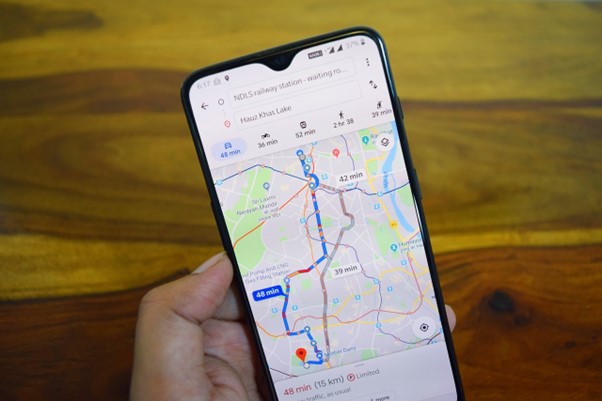
How to Measure Distance on Google Maps: Straight-Line Distance
The straight-line distance, also known as the “as-the-crow-flies” distance, measures the shortest path between two points, ignoring roads, terrain, or obstacles. Here’s how to measure straight-line distance on Google Maps.
Measuring Straight-Line Distance on Google Maps (Desktop)
To measure straight-line distance on a desktop or laptop, follow these steps:
Open Google Maps: Go to maps.google.com in your web browser.
Locate Your Starting Point: Enter the address or name of your starting point in the search bar or click on the map to select a location.
Right-Click to Start Measuring: Right-click on your starting point and select “Measure distance” from the context menu. A small black dot will appear, indicating the starting point.
Add the Endpoint: Click on the destination point on the map. Google Maps will draw a straight line between the two points and display the distance in miles or kilometers at the bottom of the screen.
Add Additional Points (Optional): To measure a multi-point path, click additional points on the map. Google Maps will calculate the total distance of the path you create.
Adjust or Clear: Drag the points to adjust the path or click “Clear measurement” to start over.
Tip: You can switch between miles and kilometers by clicking on the distance display at the bottom of the screen.
Read More: Complete Guide to How Often Google Maps Updates: Frequency, Statistics, and Processes
Measuring Straight-Line Distance on Google Maps (Mobile)
On the Google Maps mobile app (available for iOS and Android), measuring straight-line distance is slightly different:
Open the Google Maps App: Launch the app on your smartphone or tablet.
Find Your Starting Point: Search for a location or tap and hold on the map to drop a pin at your starting point.
Access the Measure Distance Tool: Tap the pin to open the location details, then scroll down and select “Measure distance”.
Move to the Endpoint: Move the map so the crosshair (a small circle) is over your destination. Tap “Add point” to set the endpoint. The app will display the straight-line distance.
Add More Points (Optional): Continue moving the map and adding points to create a custom path. The total distance will update automatically.
Clear the Measurement: Tap the back arrow or select “Clear” to reset.
Pro Tip: Zoom in for more precise pin placement, especially for short distances.
How to Measure Distance on Google Maps: Route-Based Distance
Route-based distance measures the actual travel distance along roads, paths, or public transit routes. This is ideal for planning trips or commutes.
Measuring Route-Based Distance on Google Maps (Desktop)
To measure route-based distance on a computer:
Open Google Maps: Navigate to maps.google.com.
Enter Starting and Ending Points: In the search bar, type your starting point in the first field and your destination in the second field.
Choose a Travel Mode: Select your preferred mode of transportation (driving, walking, cycling, or public transit) by clicking the corresponding icon.
View the Route: Google Maps will display the suggested route(s) with the total distance and estimated travel time. For driving, multiple routes may be shown with varying distances.
Customize the Route (Optional): Drag the route line to adjust it, such as avoiding highways or adding stops. The distance will update automatically.
Note: The distance displayed is the total length of the selected route, not a straight line.
Measuring Route-Based Distance on Google Maps (Mobile)
On the Google Maps mobile app:
Launch the App: Open Google Maps on your device.
Input Locations: Enter your starting point and destination in the search fields.
Select Travel Mode: Tap the icons for driving, walking, cycling, or public transit.
Review the Route: The app will show the route with the distance and estimated time. Swipe up to see alternative routes if available.
Modify the Route: Tap and drag points on the route to customize it. The distance will adjust accordingly.
Tip: Use the “Steps” view to see detailed turn-by-turn directions with segment distances.
Advanced Tips for Measuring Distance on Google Maps
To get the most out of measuring distance on Google Maps, consider these advanced tips:
1. Use Google My Maps for Complex Measurements
Google My Maps is a powerful tool for creating custom maps with precise distance measurements. Here’s how to use it:
Go to my.maps.google.com.
Create a new map and add layers for different routes or points.
Use the “Draw a line” tool to create custom paths and measure their distances.
Save and share your map for future reference.
Use Case: Ideal for measuring multi-stop trips or hiking trails.
2. Combine Straight-Line and Route-Based Measurements
For some projects, you may need both straight-line and route-based distances. For example, a hiker might want to know the straight-line distance to a destination but also the actual trail distance. Use the straight-line method for a quick estimate and the route-based method for practical planning.
3. Save Your Measurements
Google Maps doesn’t automatically save measurements, but you can:
Take a screenshot of the map with the distance displayed.
Use Google My Maps to save custom routes.
Copy the distance information into a note-taking app for reference.
4. Account for Elevation and Terrain
Google Maps doesn’t directly provide elevation data, but you can estimate terrain challenges by switching to the “Terrain” view (available on desktop). For precise elevation data, consider third-party tools like Strava or AllTrails.
Read More: How To Drop A Pin In Google Maps : Android, iOS & Desktop
Common Issues When Measuring Distance on Google Maps
1. Inaccurate Pin Placement
If your pins are slightly off, the distance measurement may be incorrect. Zoom in on the map for more accurate placement, especially for small distances.
2. Route Not Available
For remote areas, Google Maps may not provide walking or cycling routes. In such cases, use the straight-line measurement tool or check third-party mapping apps.
3. Unit Conversion
Google Maps defaults to miles or kilometers based on your region. To switch units, click or tap the distance display (desktop) or check your app settings (mobile).
Frequently Asked Questions About Measuring Distance on Google Maps
Can I Measure Distance on Google Maps for Multiple Points?
Yes, both the desktop and mobile versions allow you to add multiple points to measure a custom path. Simply click or tap to add points after starting the measurement.
Does Google Maps Account for Traffic When Measuring Distance?
No, the distance measurement is static and based on the route’s length. However, estimated travel times account for real-time traffic conditions.
Can I Measure Area on Google Maps?
Google Maps doesn’t have a built-in area measurement tool, but you can use Google Earth Pro or third-party GIS software for area calculations.
Is Measuring Distance on Google Maps Accurate?
Google Maps provides highly accurate distance measurements for both straight-line and route-based calculations, based on satellite data and road networks. However, small errors may occur in remote areas with incomplete mapping data.
Conclusion: Master Measuring Distance on Google Maps
Learning how to measure distance on Google Maps is a valuable skill for travelers, fitness enthusiasts, professionals, and anyone curious about geography. Whether you need a quick straight-line measurement or a detailed route-based calculation, Google Maps offers intuitive tools for desktops and mobile devices. With its wide range of applications—from trip planning to business logistics—mastering this feature can enhance your decision-making and exploration.
For more advanced mapping needs, consider exploring Google My Maps or integrating Google Maps with other tools. Start measuring today and unlock the full potential of Google Maps for your next adventure!