The default choice on Chrome is Google’s search engine, making it a convenient way to find information. Apart from answering your queries, Google also shows the latest searches and popular topics reflecting what people worldwide are looking for. Trending searches often feature breaking news, viral moments, memes, celebrity gossip, sports updates, and other topics that people are actively searching for. Although this feature is meant to keep users updated, it is not always helpful. Trending searches can be distracting or irrelevant, especially when users aren’t interested in these topics. If you find yourself feeling cluttered or overwhelmed when opening Google, you are not alone. The good news is that you can easily customise your search experience and turn off these suggestions. Read on to learn how to remove trending searches from Google.
What are trending searches on Google?
Trending searches on Google display the most popular searches being made at a particular time. They highlight topics that are currently trending around the world, usually caused by breaking news, viral posts, or new trends. Google continuously updates these recommendations using algorithms that detect sudden increases in search traffic based on location, language, and user interest. On mobile devices, they appear below the search box on the Google home page, and on a desktop, they are displayed when you tap into the search box. They should not be mixed up with autocomplete suggestions. Unlike autocomplete suggestions that complete your query as you type, trending searches simply show what is currently popular.
How to remove trending searches from Google?
To switch trending searches off on an Android phone, such as a Google Pixel phone or a Samsung Galaxy tablet, you simply need to make a small adjustment in your Google search preferences using the browser of your choice. It works similarly whether you are using Chrome, Firefox, or privacy-minded browsers such as Brave. Since trending searches are controlled by Google Search and not the browser itself, turning them off once usually applies across all browsers on your device. Below are easy step-by-step guidelines on how to remove trending searches from Google.
How to turn off Google trending searches on Android
If you’re using an Android phone or tablet, turning off Google trending searches is quick and easy. Since these suggestions come from Google Search—not the browser itself—you only need to change one setting, and it usually applies across browsers.
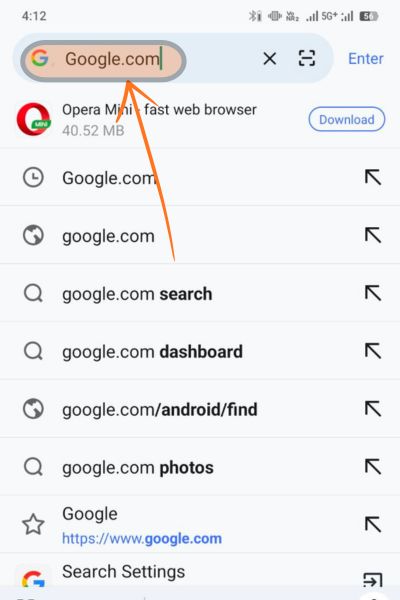
- Open your browser and go to google.com.

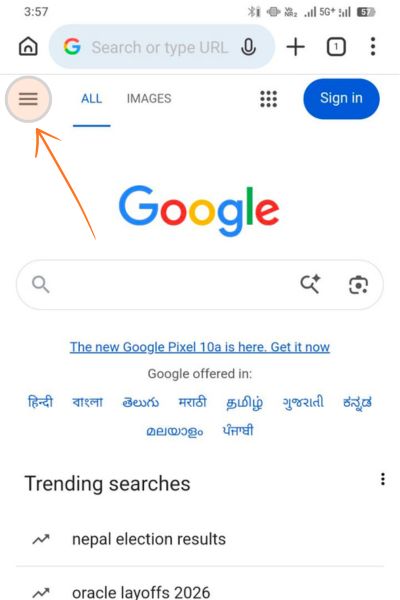
- Tap the menu icon (Three horizontal lines) at the top-left corner.
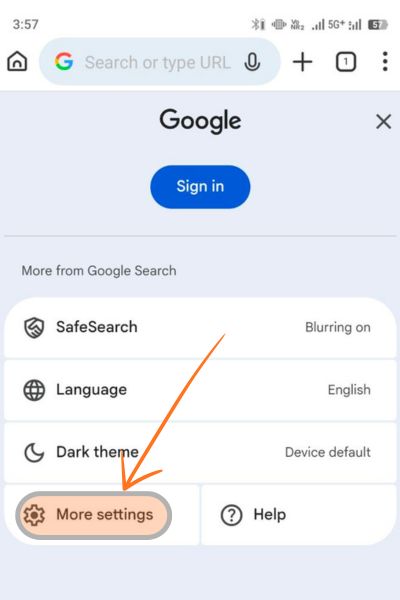
- Select More settings from the sidebar.
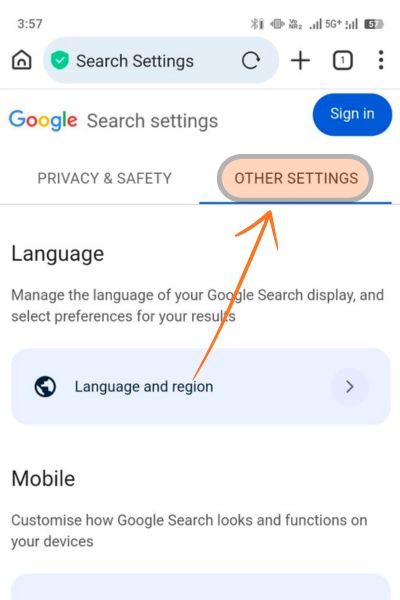
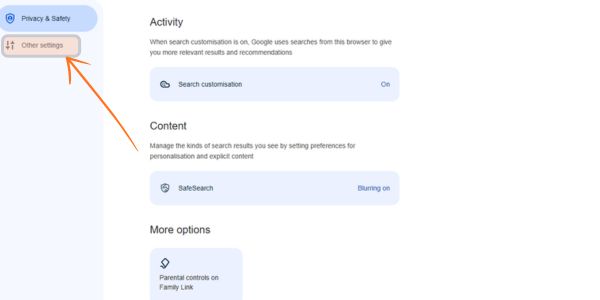
- Tap Other settings at the top of the page.
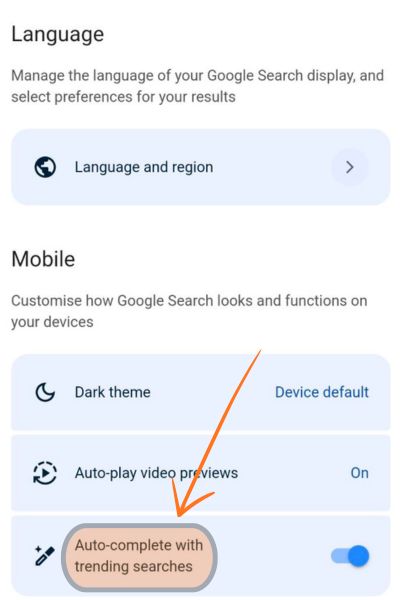
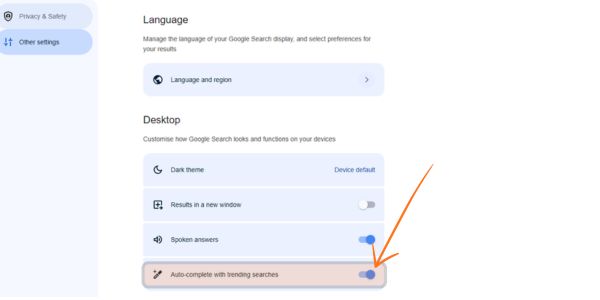
- Scroll down to “Autocomplete with trending searches” and toggle it off. Google saves your changes automatically.
How to turn off trending searches on Windows, Mac, or iPad
When you are using Google Search on a Windows PC, Mac, or iPad, you can simply disable trending searches in Google settings. This technique is compatible with all major browsers, such as Chrome, Firefox, and Safari, and it also works with most other browsers. Here are the steps on how to remove trending searches from Google on Windows, Mac, or iPad:
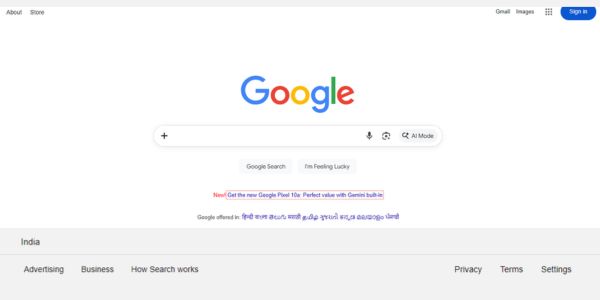
- Open a browser of your choice and visit Google.com.
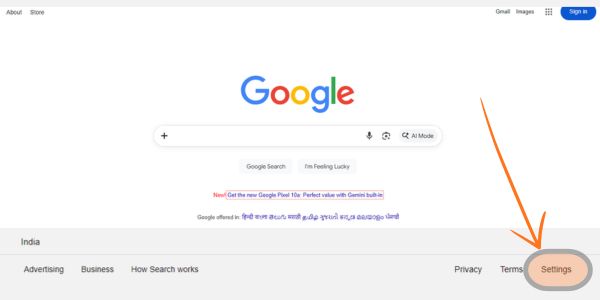
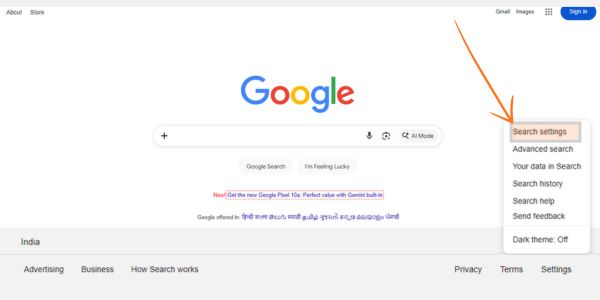
- On the bottom-right of the Google home page, scroll down and click the Settings button, and then Search settings.
- On the Search settings page, go to the left-hand sidebar and choose Other settings.
- Keep scrolling until you see “Autocomplete with trending searches”.
- Turn the switch off to turn off trending search suggestions.
How to turn off Google trending searches on iPhone
Here are the steps to follow regarding how to remove trending searches from Google on your iPhone:
- Open your preferred browser on your iPhone and go to google.com.

- Tap the menu icon (three horizontal lines) in the top-left corner of the screen.
- From the menu that appears, select Search settings.
- Tap Other settings at the top of the page.
- Scroll down until you find “Autocomplete with trending searches.”
- Toggle the switch off to disable trending search suggestions.
How to turn off trending searches in the Google App
When you use Google with the Google app on your phone or tablet, you can switch off trending searches right in the settings of the app. It can be a bit different when using Android or iOS. However, the process is not complex.
- Open the Google app on your device.
- Tap your profile picture, initials, or account icon in the top-right corner (what you see depends on whether you’re signed in and have a profile photo).
- Select Settings from the menu.
- Tap General.
- If you’re using Android, tap Autocomplete settings. iPhone and iPad users can skip this step.
- Turn off “Autocomplete with trending searches.”
What to Do If You Can’t Turn Off Trending Searches
Trending searches may still appear even after turning them off, but there is nothing to worry about. This is normal and happens to other users as well. The following are some practical things to consider.
- Make sure you’re signed in: Trending search settings can be associated with your Google account. When you are not logged in, Google might disregard your preferences and keep displaying popular searches.
- Refresh or restart: After you have changed the settings, just refresh the Google page and reopen the app again. Sometimes, it takes some time as changes do not apply immediately.
- Clear cache and cookies: Cached data can sometimes cause Google to display outdated settings. To solve this issue, you need to clear the cache or app data.
- Update your browser or Google app: Make sure your browser is running on the current version. If it’s not updated, do it regularly to prevent this issue.
- Check multiple devices: If you are using the same Google account on multiple devices, the settings may take some time to sync. Give it some time, or check manually that the option is off everywhere.
- Be aware of Google experiments: Sometimes Google tests features, which may cause trending searches to appear temporarily despite being turned off.
Conclusion
In conclusion, how to remove trending searches from Google, all you need to do is follow the steps mentioned above. Trending searches are designed to inform users about popular topics, but they don’t work for everyone. With just a few settings, you can remove irrelevant topics and keep your search experience under control, and focus on what matters most. Although the option does not always stick immediately, a refresh, update, or account check often fixes it. After all, Google is most effective when it adapts to your preferences rather than the other way around. Taking control of features like trending searches helps make your browsing experience cleaner, quieter, and more personal.
FAQs
1. Does turning off trending searches affect Google autocomplete?
No. Autocomplete will continue to provide suggestions of search phrases as you type. Turning off trending searches is just a way of getting rid of trending or viral topics that you see before you begin typing.
2. Can trending searches be disabled permanently?
Yes, but Google settings can occasionally change with updates or experiments. When turned off, they remain disabled unless you clear settings, log out, or change devices.
3. Why do trending searches differ by location?
Regional activity influences trending searches. What is trending in one country or even a city might not be visible in another due to trends being customised by Google based on local interest.
4. Do trending searches appear in Incognito or private mode?
They can. The incognito mode hides your history, but it does not necessarily delete trending search results, as they are based on overall search trends, not your personal search history.
5. Does disabling trending searches improve privacy?
It does not prevent Google from collecting data, but it lowers exposure to trending topics and on-screen recommendations, which makes the search seemingly more private and personalized.