Whether you’re a beginner editing photos for fun or a professional working with layered PSD files, you might be looking for better, cheaper, or simpler tools than Photoshop. Adobe’s pricing model isn’t for everyone, and not all users need its advanced features. The good news? There are many reliable Photoshop alternatives that work across devices and platforms.
Let’s go through the best free and paid tools available, especially for Mac users and browser-based editing. You’ll also get a quick comparison table to help you decide faster.
Best Free Photoshop Alternatives
Looking for photo editing software that won’t cost a penny? There are several powerful tools available that offer many of Photoshop’s core features without the subscription. These editors support layers, effects, RAW formats, and even PSD files, making them ideal for beginners and seasoned editors alike.
GIMP
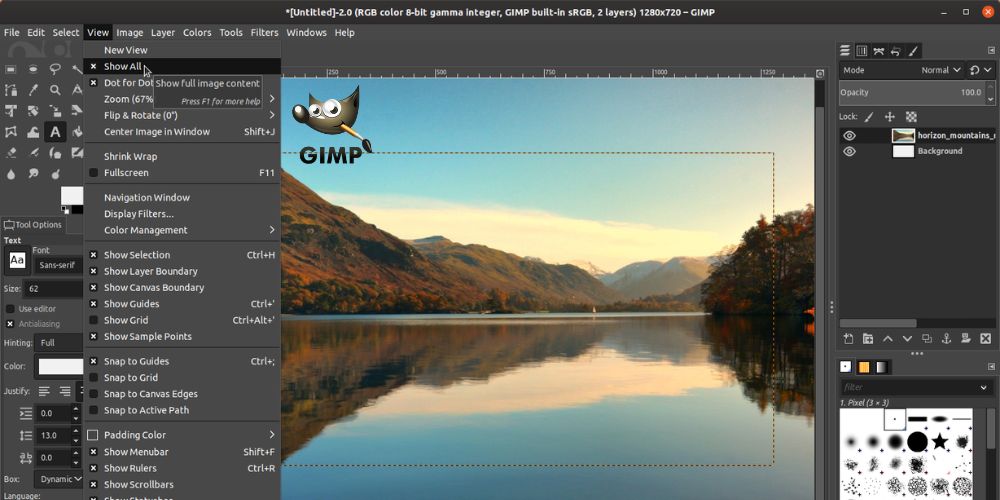
GIMP (GNU Image Manipulation Program) is one of the oldest and most trusted free image editors. It offers a wide range of tools such as color correction, cloning, layer masks, and scripting. While it doesn’t match Photoshop’s polish, it’s highly flexible and supports many third-party extensions to expand its features.
You can even tweak the UI to make it look closer to Photoshop. GIMP works well for both casual edits and professional-grade image manipulation.
Photopea
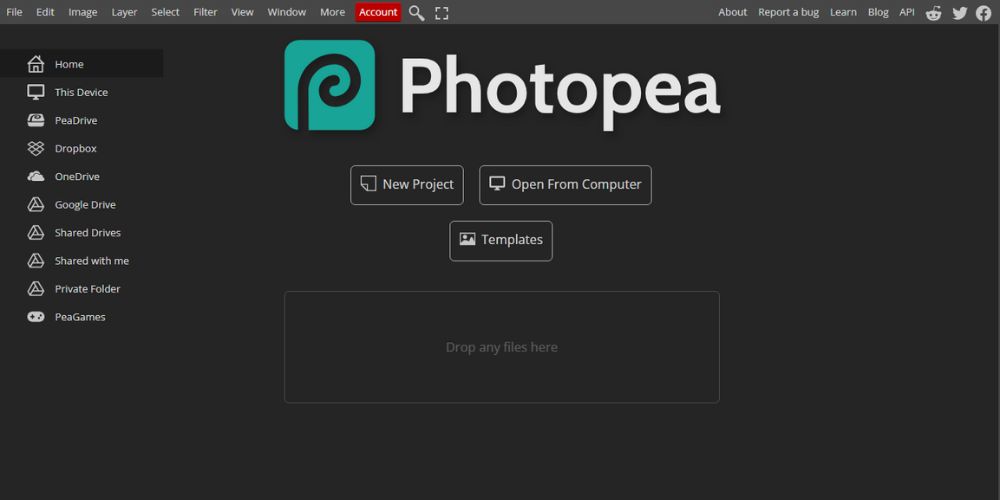
Photopea is a browser-based editor that looks and feels like Photoshop. It opens PSD, XCF, Sketch, and even RAW files. You don’t need to create an account or download anything—it works directly in your web browser.
It’s especially useful for users who need Photoshop-like functionality on Chromebooks or shared computers. The interface is clean, responsive, and supports layer styles, adjustment layers, and smart objects.
Canva
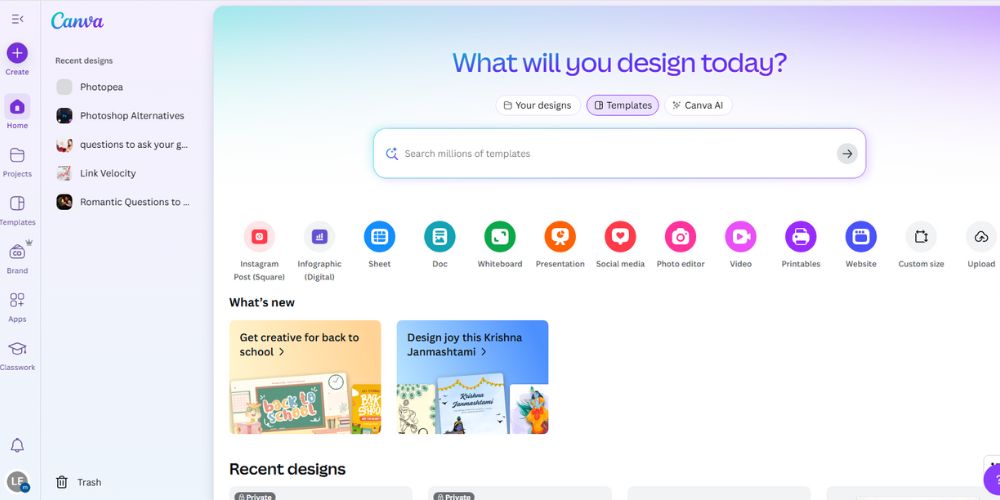
Canva focuses more on design than photo manipulation, but it’s one of the best tools for non-designers. With a drag-and-drop layout, pre-designed templates, and thousands of free assets, you can easily create posters, social media graphics, and presentations.
It’s browser-based with a mobile app, making it accessible on the go. While not ideal for pixel-perfect edits, it’s excellent for quick design needs and brand marketing visuals.
Krita
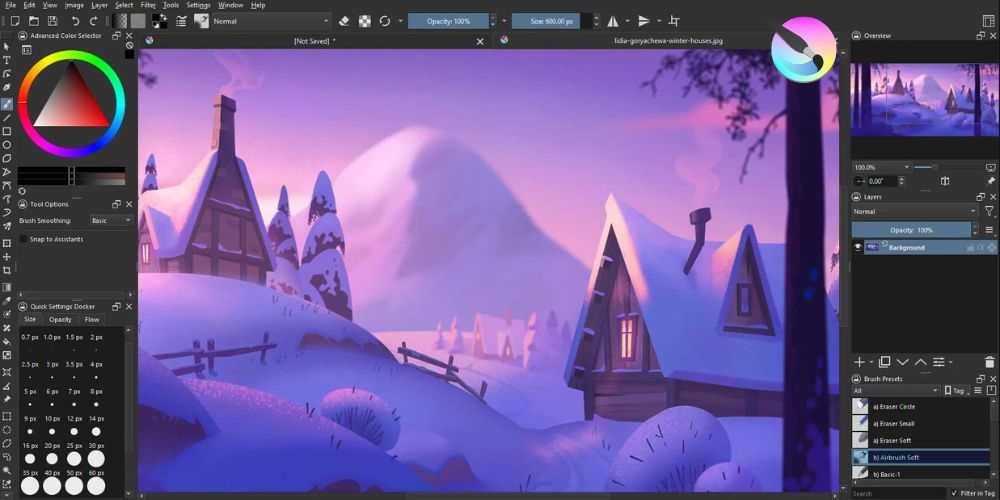
Krita is designed for digital artists and illustrators but also supports basic photo editing. It includes advanced brush controls, canvas rotation, HDR painting, and animation features.
The software is intuitive, especially for tablet users. It’s open-source and frequently updated, with a helpful online community behind it.
Pixlr X & Pixlr E
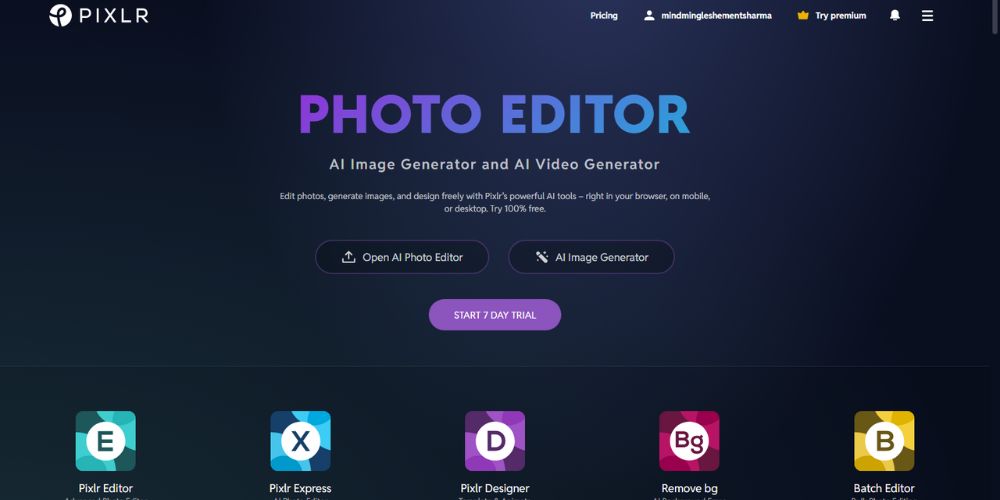
Pixlr X offers basic features like cropping, background removal, and AI-powered filters. Pixlr E, on the other hand, is a more advanced version supporting layers, masking, and color corrections.
Both are browser-based and load quickly even on slower internet connections. They’re great options for people who need a fast tool for quick edits without installing anything.
Darktable & RawTherapee
These two are aimed at photographers who work with RAW files and need non-destructive editing tools. Darktable offers color mapping, exposure control, and tethered shooting, while RawTherapee focuses on precision tone control and sharpening.
They may have a steeper learning curve than other tools, but they’re perfect for users needing Lightroom-like functionality without the cost.
Photoshop Alternatives for Mac
If you’re a Mac user, you’re likely looking for photo editors that work smoothly with macOS and take advantage of Apple’s hardware. Whether you’re using a MacBook Air or a high-end M3-powered iMac, several tools can serve as excellent Photoshop alternatives—without compromising on performance or features.
Affinity Photo
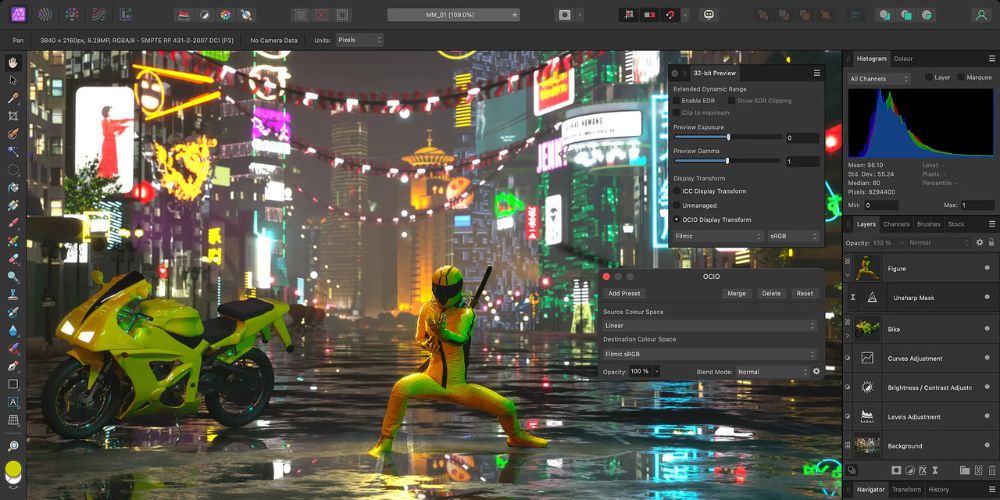
Affinity Photo is a premium photo editor with a one-time payment model. It supports full PSD compatibility, RAW image editing, panorama stitching, HDR merging, and even batch processing. Optimized for Apple Silicon (M1, M2, M3 chips), it delivers lightning-fast performance with minimal lag.
Its interface is familiar if you’ve used Photoshop before, and many professionals use it as their daily editing tool. Affinity Photo also works well with macOS features like Universal Clipboard and Retina display scaling, providing a seamless workflow.
Pixelmator Pro
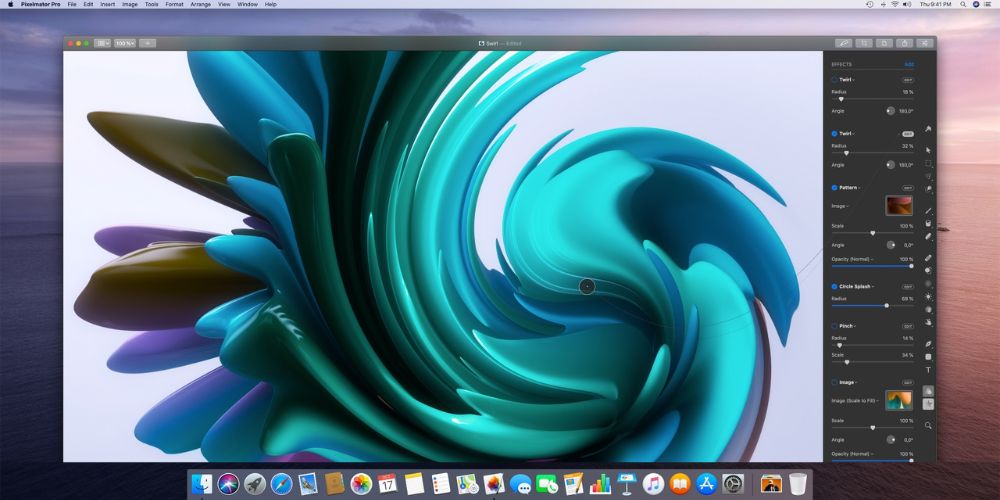
Pixelmator Pro is built exclusively for Mac, and it shows. It’s integrated deeply with macOS tools like iCloud syncing, the Photos app, and Sidecar. You can use the Apple Pencil with Sidecar on an iPad or take advantage of keyboard shortcuts on your Mac.
The tool also includes machine learning-based enhancements for upscaling images, object removal, and smart selection. Pixelmator Pro is ideal for both casual and pro users who want a native Mac app that’s sleek and powerful.
Canva (macOS Compatible)
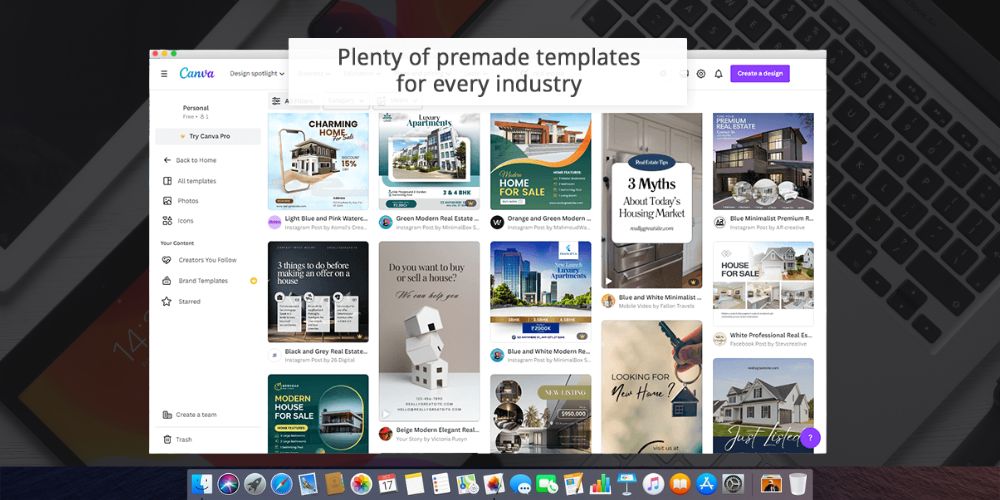
While Canva is browser-based, it runs smoothly on Safari and Chrome for Mac users. Its responsive interface adapts well to macOS gestures and trackpad controls, making it an easy tool for quick design projects like social media posts, flyers, and invitations.
It may not offer high-end photo manipulation tools, but its drag-and-drop UI, vast template library, and online syncing make it a practical choice for marketers, students, and small business owners using Mac devices.
GIMP & Photopea
Both GIMP and Photopea are fully compatible with macOS, making them reliable free choices.
- GIMP must be installed manually on your Mac, but it offers a wide set of tools for advanced image editing.
- Photopea runs directly in your browser and mimics the Photoshop layout, perfect for quick edits when you don’t want to download software.
These tools may not be Mac-exclusive, but they perform well across different macOS versions and support most common file types, including PSD and RAW.
Photoshop Alternatives: Feature Comparison Table
Here’s a quick reference table comparing the best free tools based on key features:
| Tool | Platform | Features | PSD Support | RAW Editing | Best For |
| GIMP | Windows, Mac, Linux | Layers, masks, plugin support | Partial | Yes | Power users |
| Photopea | Browser (All OS) | PSD editing, Photoshop-style UI | Full | Limited | Designers on the go |
| Canva | Browser, Mobile | Templates, design elements, drag & drop | No | No | Social media, presentations |
| Krita | Windows, Mac, Linux | Linux Digital painting, brush engines | Partial | No | Artists & illustrators |
| Pixlr X/E | Browser (All OS) | AI tools, filters, layer editing | Limited | No | Quick edits |
| Darktable | Windows, Mac, Linux | Non-destructive RAW editing | No | Yes | Professional photographers |
Why Consider Alternatives to Photoshop?
You might not need all the bells and whistles of Adobe Photoshop. Many alternatives load faster, are easier to use, and don’t tie you into a monthly payment. Tools like Photopea mimic the feel of Photoshop in your browser, while Affinity Photo and Pixelmator Pro give you premium tools with just a one-time payment.
Apps like Canva offer simplicity and speed, especially if you’re working on social media posts, ads, or web banners. Others like Krita or Darktable appeal to artists and photographers with more specific needs.
Wrapping Up
Choosing the right photo editor comes down to what features you actually need. Whether you want precise control over RAW images, simple social media templates, or a Photoshop-like interface, there’s a Photoshop alternatives that fits your workflow and budget.
You don’t need to stick to a paid subscription if your needs are simple. Free options like GIMP, Photopea, Krita, and Canva are capable enough for most users. If you’re willing to invest a little, tools like Affinity Photo or Pixelmator Pro provide professional results without monthly costs.
Test out a few of these editors, see what feels right, and save both time and money with a tool that actually works for you.
Frequently Asked Questions (FAQs)
1. What is the best free Photoshop alternative for beginners?
Photopea and Canva are ideal for beginners. Photopea feels similar to Photoshop and runs in your browser without needing installation. Canva is great for creating social media designs with pre-built templates and a simple drag-and-drop editor.
2. Can I open PSD files with free alternatives?
Yes, editors like Photopea, GIMP, and Krita can open and edit PSD files. Photopea offers the most seamless experience with full layer support directly in your browser.
3. Which Photoshop alternative works best on Mac?
Pixelmator Pro and Affinity Photo are optimized for macOS and Apple Silicon chips. They offer professional-grade features without a subscription and work smoothly on all recent Mac devices.
4. Is there a web-based alternative to Photoshop?
Yes. Photopea, Pixlr, and Canva are all browser-based tools that require no downloads. Photopea is best for advanced editing, while Canva is more suited to quick design projects.
5. Are free tools safe to use?
Most popular free tools like GIMP, Krita, Photopea, and Canva are safe to use. Always download from the official website or trusted sources to avoid unwanted software or malware.